
How to run Aidbox in GCP Cloud Run
Objectives
Before you begin
- You must have an active Google Cloud account. More information here.
Create a Managed PostgreSQL Database
-
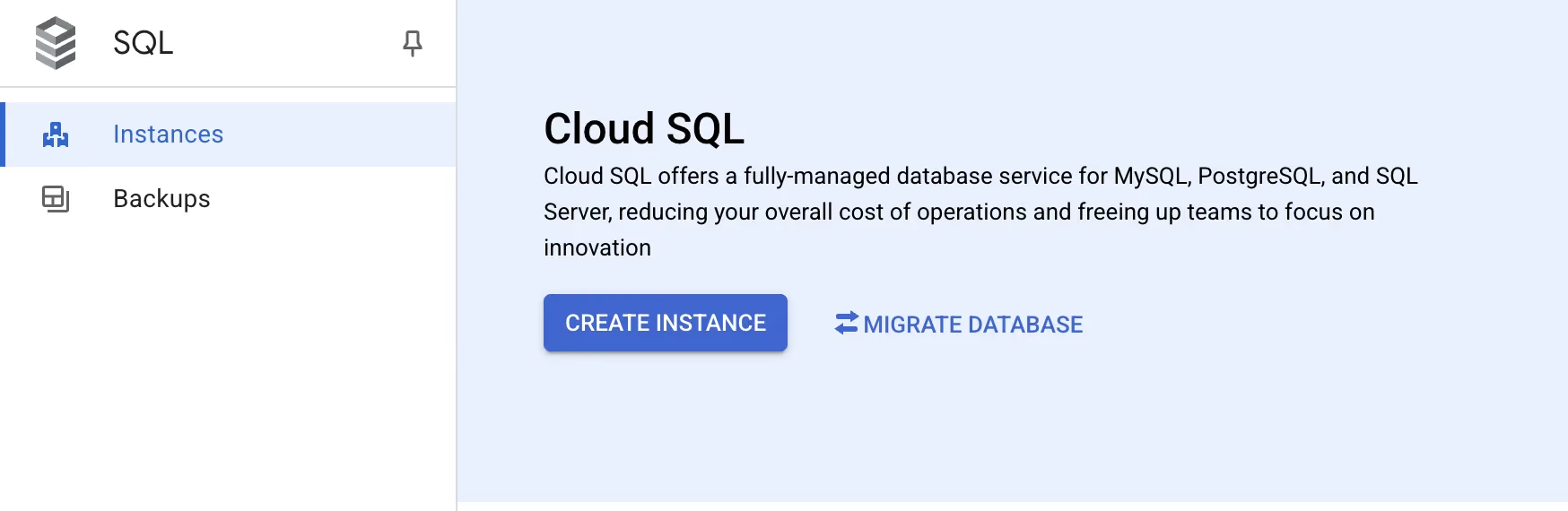
Log in to Google Cloud Console, go to SQL Service, and create a new Cloud SQL instance.
-
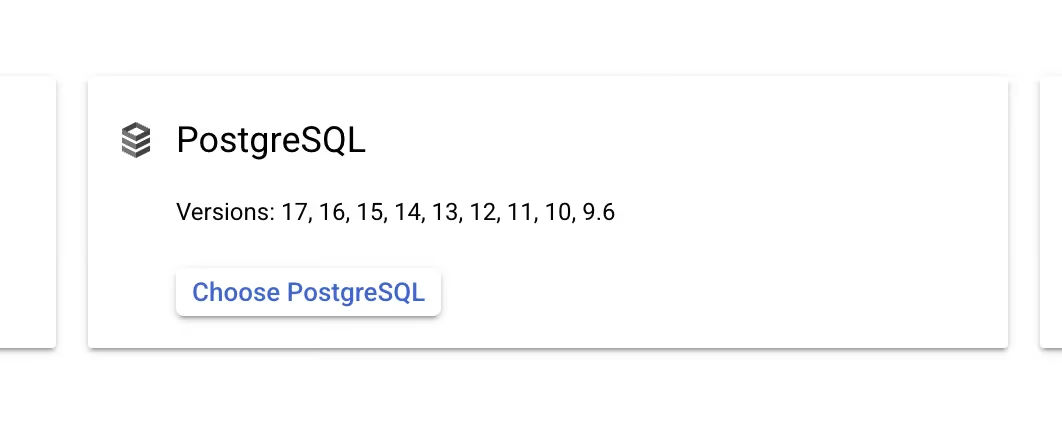
Choose PostgreSQL for the database engine
-
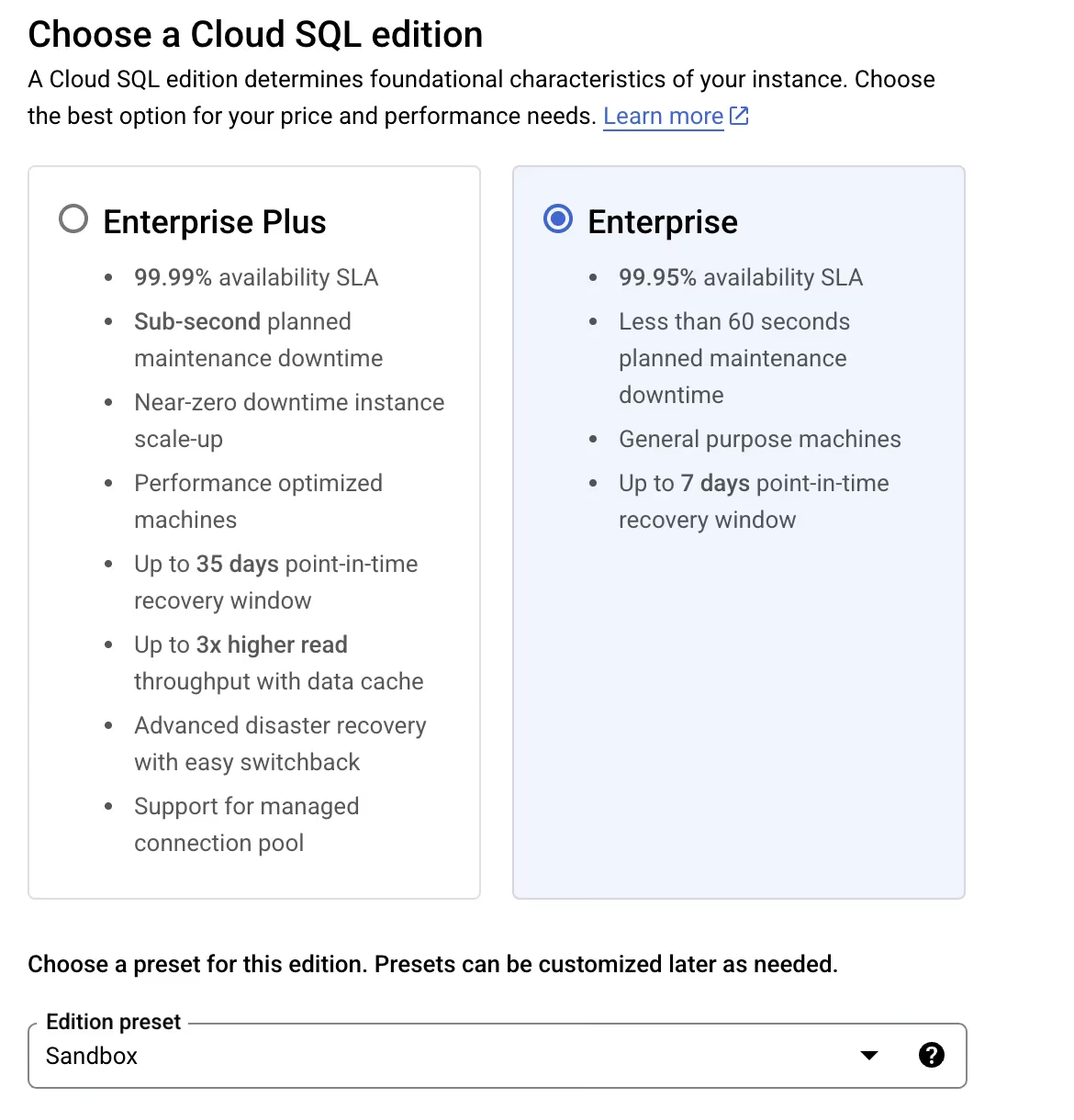
Choose Enterprise Cloud SQL Edition and "Sandbox" edition preset
-
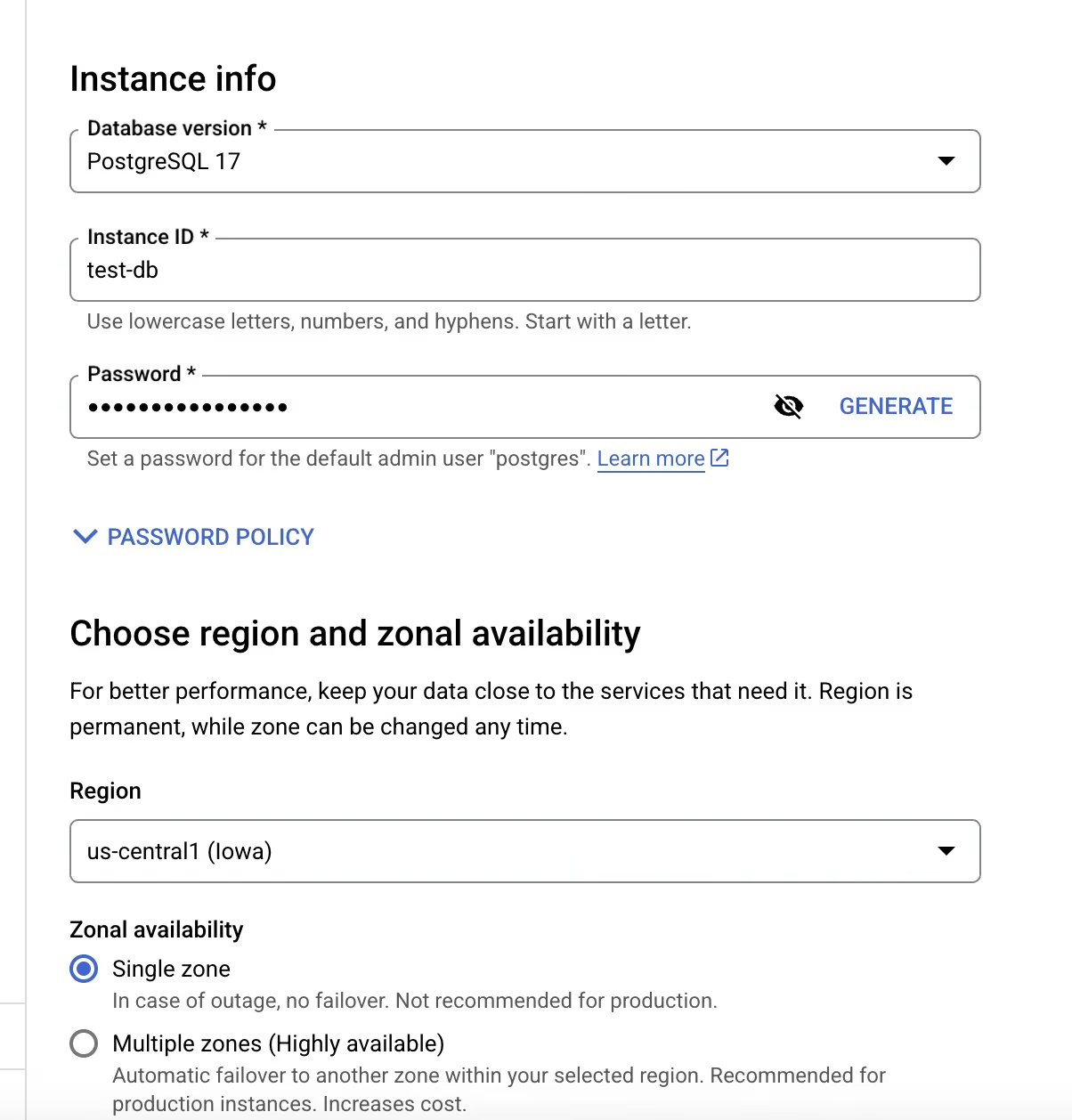
Enter the required parameters
5. Configure the private IP access to the database instance.
Restricting database access at the network level is a recommended security best practice. In this tutorial, we take a simple approach by allowing access from the default VPC network and configuring Cloud Run to use the same network for outbound connections. For production environments, we strongly encourage implementing more granular and restrictive network policies tailored to your security needs.
In the "Customize your Instance -> Connections" section, enable the "Private IP" option and disable the "Public IP" option.
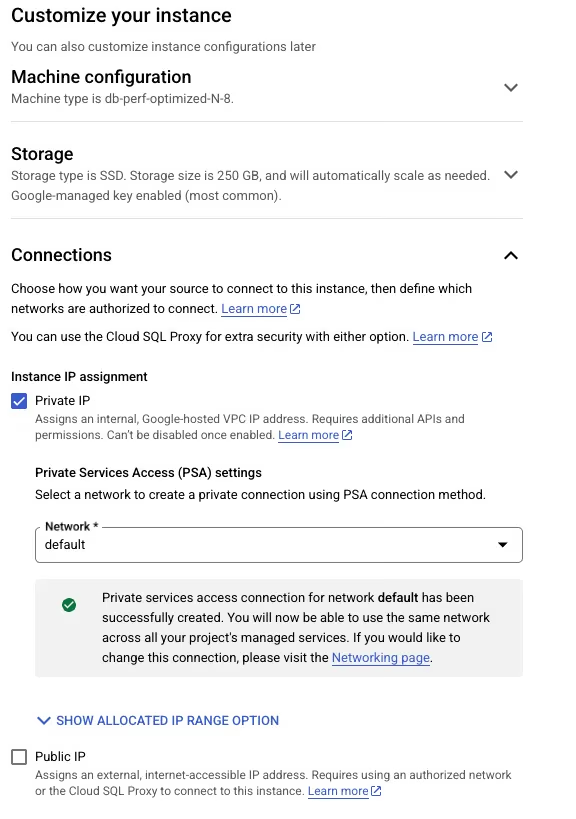
6. Click the "Create Instance" button and wait until the instance is created.

Create a database and a user for the Aidbox service
-
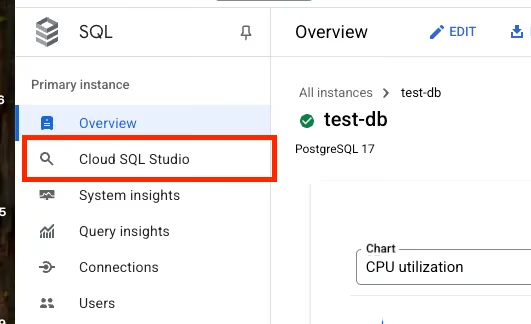
Open Cloud SQL Studio.
-
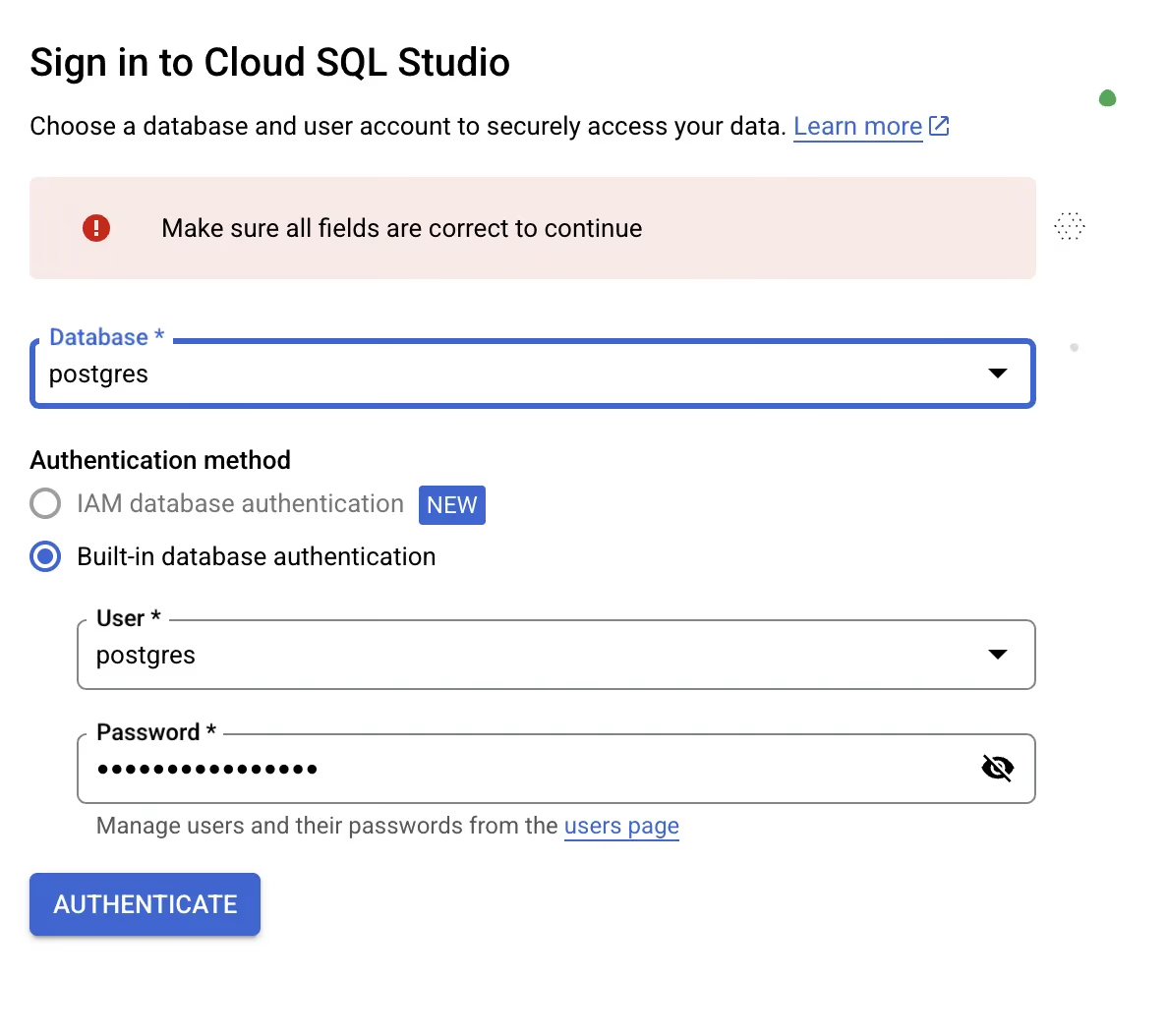
Connect to the postgres database with the username postgres and the password you've chosen when you created the database.
-
Create the database and user for the Aidbox.
Run the following statements one by one in Cloud SQL Studio Editor-- 1. Create the user (and a role) for Aidbox CREATE USER aidbox WITH PASSWORD '<your password for aidbox user>'; -- 2. Grant the role aidbox to postgres, because postgres is not a superuser -- in Google Cloud SQL. -- It's required to execute the following ALTER DATABASE statement GRANT aidbox TO postgres; -- 3. Create the database for Aidbox owned by the aidbox user CREATE DATABASE aidbox OWNER aidbox;
During initialization, Aidbox creates certain database extensions. You can find more details here. If you prefer not to grant the Aidbox user the permissions required for this, you can pre-create the necessary extensions using a privileged user and disable automatic extension creation via settings. This is the approach we follow in the current tutorial.
- Connect to the database
aidbox, that you've created using user postgres, and create the extensions.
CREATE EXTENSION pg_stat_statements;
CREATE EXTENSION unaccent;
Create the service for Aidbox in Cloud Run
-
Navigate to the "Cloud Run" section in the Google Cloud Console and create a new service from the container .

-
Enter
healthsamurai/aidboxone:edgeas a container image URL and add a service name.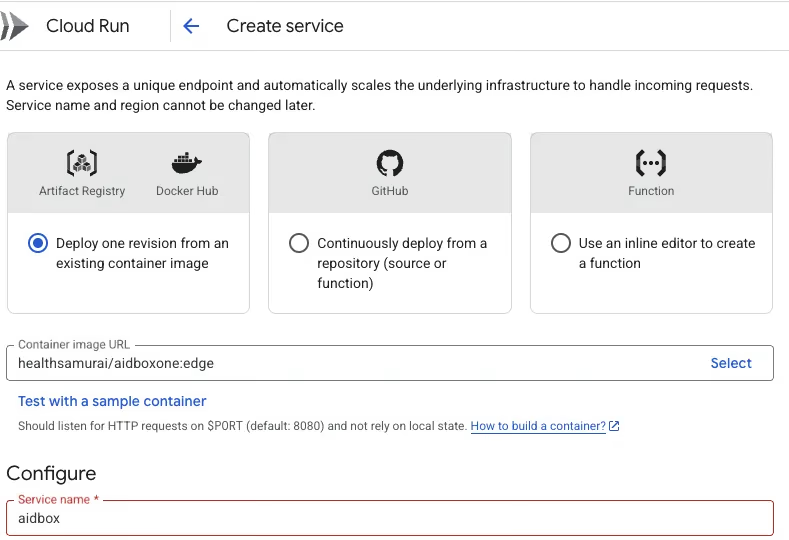
-
Disable authentication.

-
Select "Instance-based" billing, set Auto scaling to 1 and leave other properties by default.\
.avif)
-
Configure Memory and CPU Limits

-
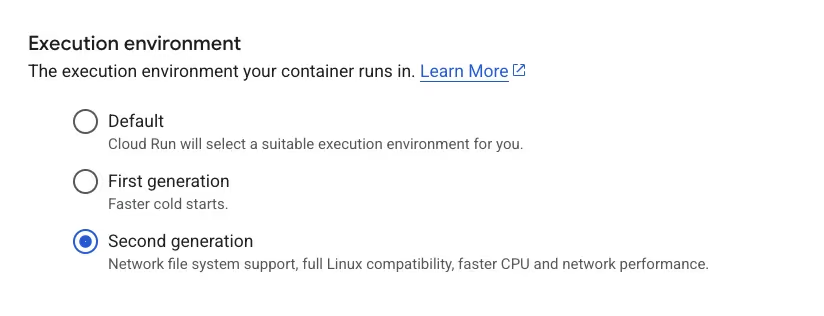
Enable "Second generation" execution environment for better performance
-
In the container properties, add environment variables.
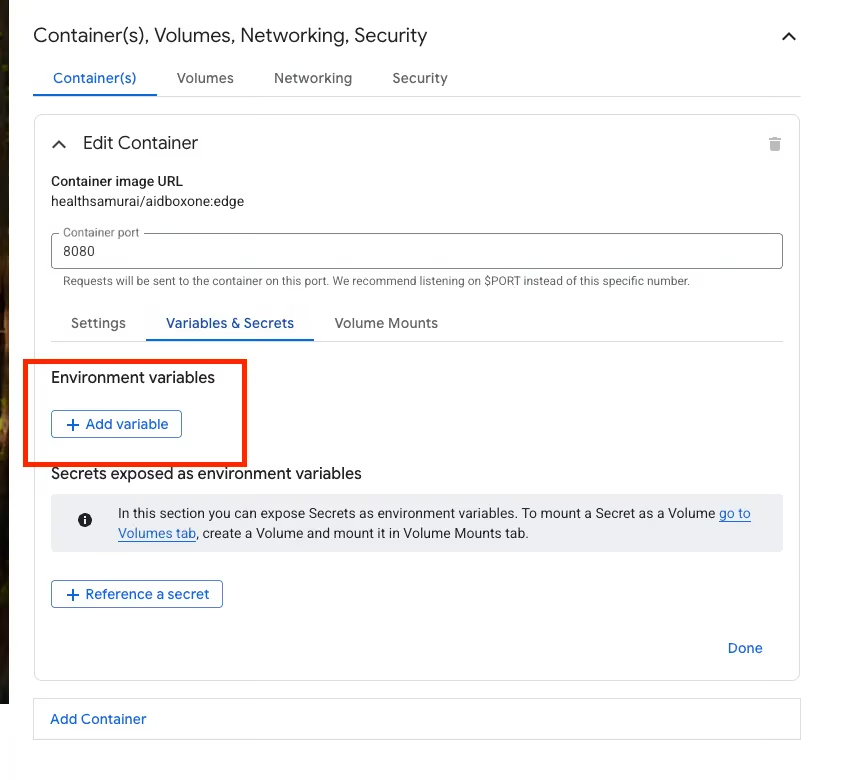
Add the following environment variables:\
- name: BOX_FHIR_SCHEMA_VALIDATION
  value: true
- name: BOX_DB_PORT
  value: 5432
- name: BOX_WEB_PORT
  value: 8080
- name: BOX_SECURITY_DEV_MODE
  value: true
- name: BOX_BOOTSTRAP_FHIR_PACKAGES
  value: hl7.fhir.r4.core#4.0.1
- name: BOX_DB_DATABASE
  value: aidbox
- name: BOX_FHIR_CREATEDAT_URL
  value: https://aidbox.app/ex/createdAt
- name: BOX_ROOT_CLIENT_SECRET
  value: <put the default API client secret here>
- name: BOX_FHIR_CORRECT_AIDBOX_FORMAT
  value: true
- name: BOX_SETTINGS_MODE
  value: read-write
- name: BOX_DB_USER
  value: aidbox
- name: BOX_FHIR_COMPLIANT_MODE
  value: true
- name: BOX_FHIR_SEARCH_COMPARISONS
  value: true
- name: BOX_COMPATIBILITY_VALIDATION_JSON__SCHEMA_REGEX
  value: #{:fhir-datetime}
- name: BOX_FHIR_TERMINOLOGY_SERVICE_BASE_URL
  value: https://tx.health-samurai.io/fhir
- name: BOX_DB_HOST
  value: <put your PostgreSQL internal IP here>
- name: BOX_FHIR_SEARCH_AUTHORIZE_INLINE_REQUESTS
  value: true
# See https://cloud.google.com/run/docs/triggering/https-request#deterministic
# for more info about deterministic URLs
- name: BOX_WEB_BASE_URL
  value: <put your deterministic URL here>
- name: BOX_DB_PASSWORD
  value: <put the password of aidbox database user here>
- name: BOX_ADMIN_PASSWORD
  value: <put the password of aidbox built-in admin user here>
- name: BOX_SEARCH_INCLUDE_CONFORMANT
  value: true
- name: BOX_DB_INSTALL_PG_EXTENSIONS
  value: false
- name: BOX_DB_MAINTENANCE_DATABASE
  value: aidbox
- name: JAVA_OPTS
  value: -XX:MaxRAMPercentage=75 -XshowSettings:vm
See more about recommended Aidbox environment variables here.
These settings authenticate with a database password stored in an environment variable. To authenticate with short-lived IAM tokens and store no password, see Connect through the Cloud SQL Java Connector below.
<figure><img src="../../../assets/bc06953f-ef76-4c90-ac15-59f1f56d3794.avif" alt="Networking tab with VPC connector settings"><figcaption></figcaption></figure>
8. At the Networking tab, configure the outbound traffic to go to the default subnet.\
<figure><img src="../../../assets/b89e5183-91ac-4506-944f-376e4cc90d49.avif" alt="Outbound traffic configuration set to use default VPC network"><figcaption></figcaption></figure>
9. Click the "Create" button and wait for the service to deploy successfully.
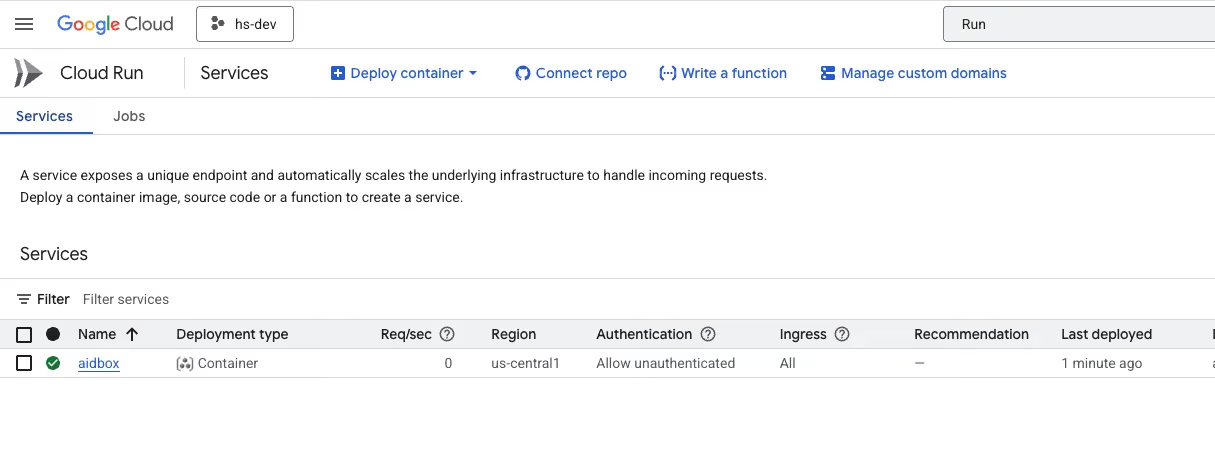
- Access the service via the URL.

- Activate the Aidbox instance.
Connect through the Cloud SQL Java Connector
The steps above reach Cloud SQL over private IP and authenticate with the aidbox user password. The Cloud SQL Java Connector replaces that with an mTLS tunnel and a short-lived IAM token, so no database password is stored in the service configuration. Aidbox does not bundle the connector, so a Cloud Run deployment has to add the connector jars to the container and switch the connection settings.
Read How to run Aidbox with Cloud SQL Java Connector for the connection settings, the IAM database user name, and how to build the jar directory. The Cloud Run specific parts are below.
The connector replaces the Cloud SQL Auth Proxy sidecar and the built-in Cloud Run Cloud SQL integration (--add-cloudsql-instances), which exposes a Unix socket at /cloudsql/INSTANCE_CONNECTION_NAME. Leave the built-in integration off: the connector opens its own connection, so keeping both configured adds a second unused path to the same instance.
Grant the service account access
The runtime service account supplies credentials through the metadata server, so GOOGLE_APPLICATION_CREDENTIALS is not needed. Grant it the roles/cloudsql.client and roles/cloudsql.instanceUser roles, and register it as an IAM database user on the instance. See Cloud SQL roles and permissions and Manage IAM database users.
roles/cloudsql.client covers connectivity to the instance. roles/cloudsql.instanceUser carries the cloudsql.instances.login permission that IAM database authentication requires, so grant both.
Deliver the connector jars
Cloud Run has no bind mount, so pick one of two ways to get the jar directory into the container. Both use the same JAVA_EXTRA_PATH value.
Build a thin image on top of the Aidbox image:
FROM healthsamurai/aidboxone:edge
COPY jars/ /jars/
ENV JAVA_EXTRA_PATH=/jars/*
The classpath is fixed at build time and cold starts do no extra I/O. Rebuild the image to change the connector version. Use this for production.
Or upload the jars to a Cloud Storage bucket and mount it as a volume:
gcloud storage cp jars/* gs://<BUCKET>/

gcloud run services update <SERVICE> \
  --region=<REGION> \
  --execution-environment=gen2 \
  --add-volume=name=jars,type=cloud-storage,bucket=<BUCKET>,readonly=true \
  --add-volume-mount=volume=jars,mount-path=/jars \
  --set-env-vars=JAVA_EXTRA_PATH='/jars/*'
The mount needs the second generation execution environment and roles/storage.objectViewer on the bucket for the runtime service account. Cloud Run reads the jars over the network on every cold start, which adds startup latency. Swapping connector versions means replacing the objects in the bucket with no image rebuild, which suits testing.
Replace the connection settings
Keep the environment variables from step 7, change BOX_DB_USER to the IAM database user, and add the rest:
# replaces the value from step 7
- name: BOX_DB_USER
  value: <IAM_DB_USER>
- name: AIDBOX_DB_PARAM_SOCKET_FACTORY
  value: com.google.cloud.sql.postgres.SocketFactory
- name: AIDBOX_DB_PARAM_CLOUD_SQL_INSTANCE
  value: <INSTANCE_CONNECTION_NAME>
- name: AIDBOX_DB_PARAM_ENABLE_IAM_AUTH
  value: true
- name: AIDBOX_DB_PARAM_CLOUD_SQL_REFRESH_STRATEGY
  value: lazy
- name: JAVA_EXTRA_PATH
  value: /jars/*
The connector resolves the instance address itself and ignores BOX_DB_HOST and BOX_DB_PORT, and it authenticates with an IAM token rather than BOX_DB_PASSWORD. Set all three to a non-empty value anyway. Aidbox treats db.host, db.user, db.password and db.database as required settings and refuses to start when one of them has no value. cloudSqlRefreshStrategy=lazy suits Cloud Run and other serverless runtimes, where instances are short-lived. For a private IP instance add AIDBOX_DB_PARAM_IP_TYPES=PRIVATE and keep the VPC egress configuration from step 8.
What's next
See more about different options for running Aidbox: