
How to configure sign-in with Apple for access to the Aidbox UI
Objectives
- Configure integration with the Sign-in with Apple (SSO) to enable secure login to the Aidbox UI
Before you begin
- Create an account in Apple Developer portal
- Make sure your Aidbox version is newer than 2503
- Set up the local Aidbox instance using the getting started guide
Managing Admin Access to the Aidbox UI Using Apple SSO
Create a Client (Application) in Apple
Log in to https://developer.apple.com/account
Navigate to Certificates, Identifiers & Profiles -> Identifiers section and create a new Identifier for your App.
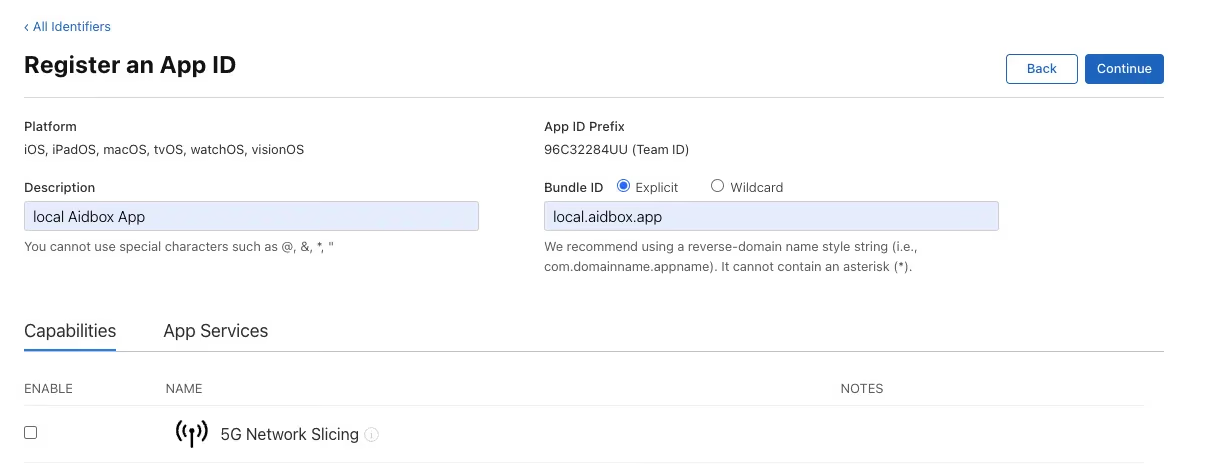
Check "Sign in with Apple" on the Capabilities tab.
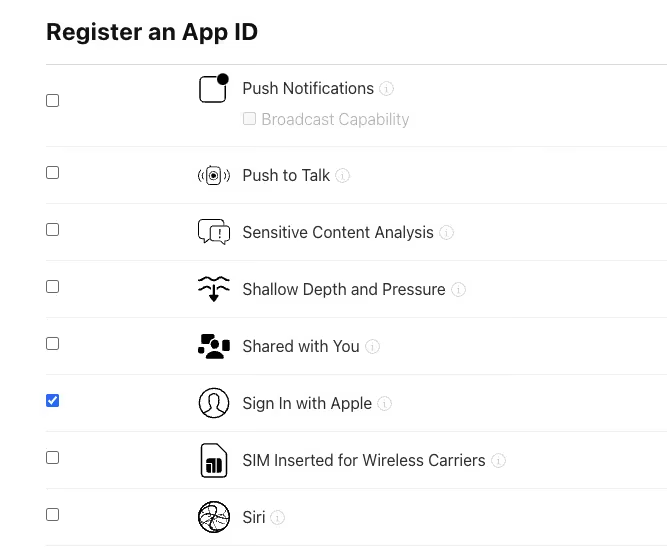
Follow the process and Register your App.
Create Service
Navigate to Certificates, Identifiers & Profiles -> Identifiers section and create a new Identifier for your Service
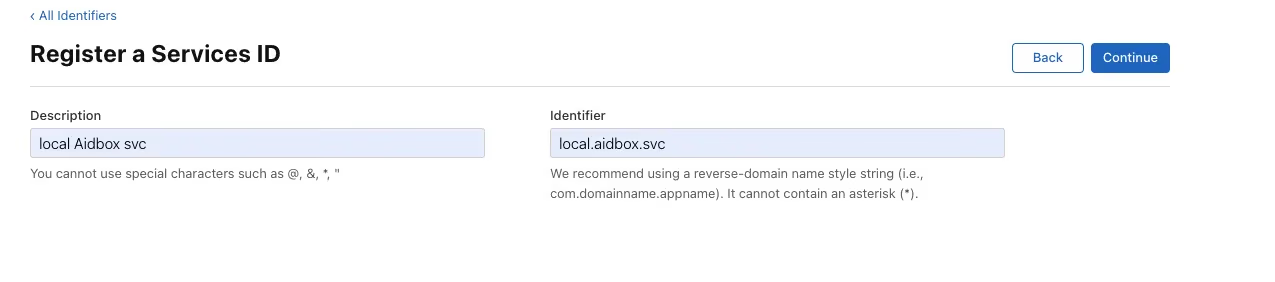
Drill down in the registered service and enable "Sign in with Apple"
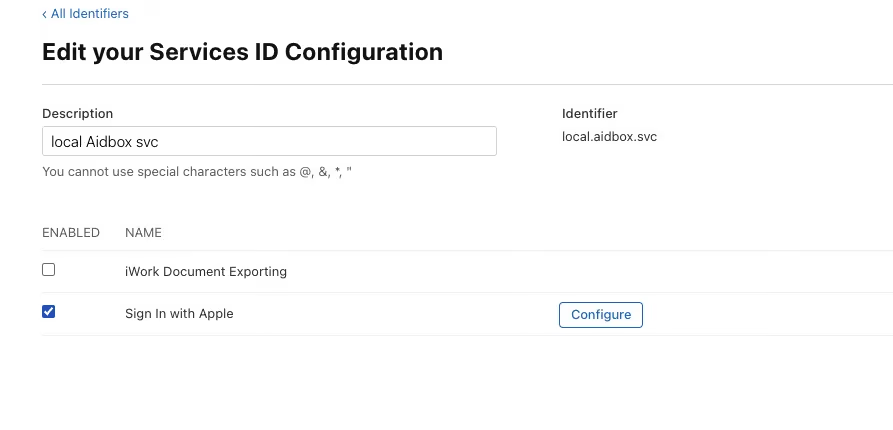
Click "Configure" button.
Select App ID you created as a Primary App ID and add a new Website URL
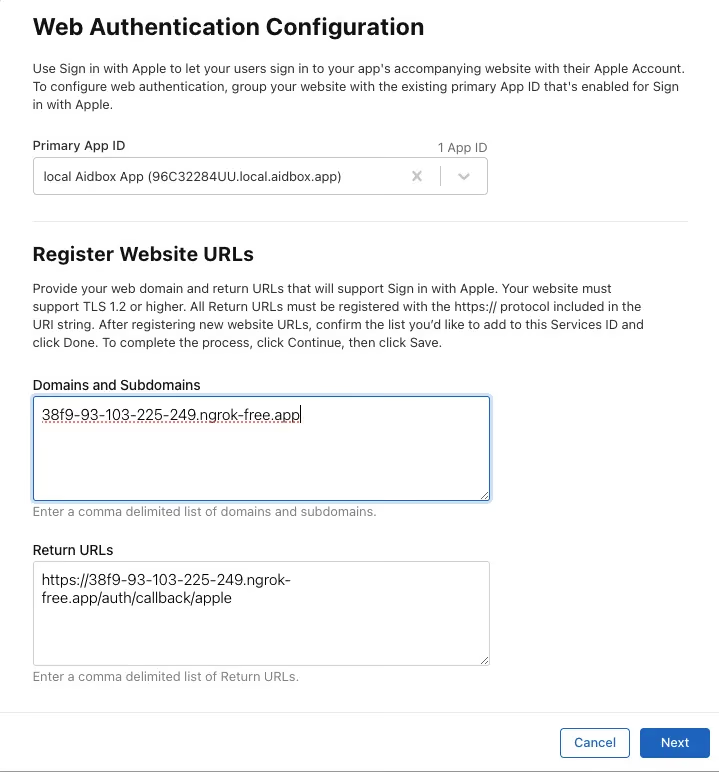
Apple allows HTTPS URLs only. In local development, you can tunnel your local Aidbox URL http://localhost:8080 to HTTPS using Ngrok or a similar tunnelling tool.
Follow the process and Register your Service.
Create Key
Navigate to Certificates, Identifiers & Profiles -> Keys section and create a new Key.
Enable "Sign in with Apple" and click the "Configure" button.
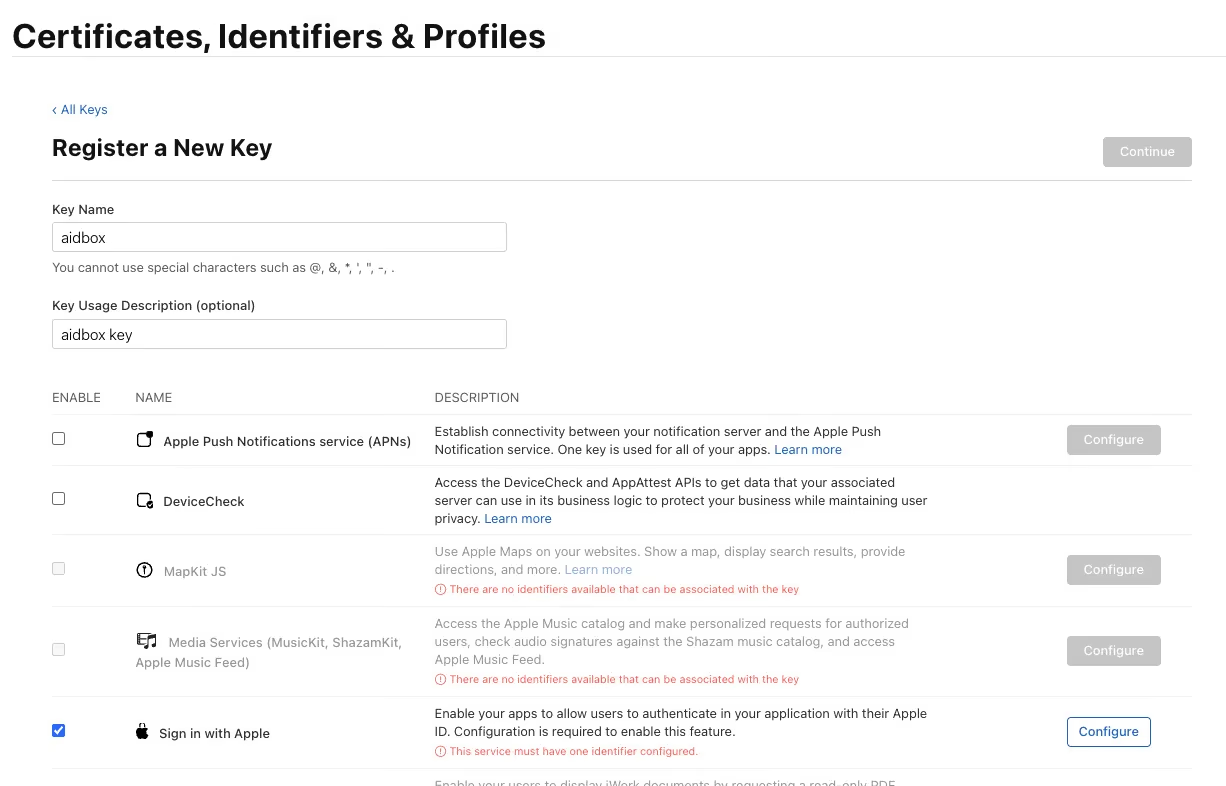
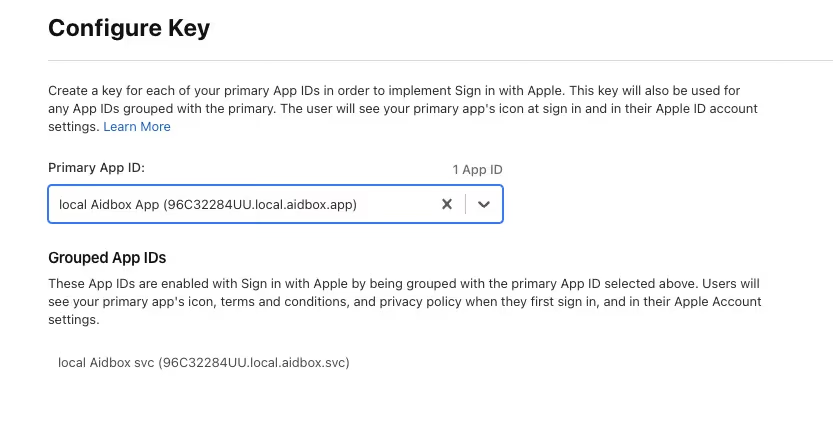
Select you App as a "Primary App Id".
Register your Key and download the Key.

Create an IdentityProvider in Aidbox
Login to Aidbox UI.
Use REST Console to execute the request below.
-
<kid>should be your Key Id
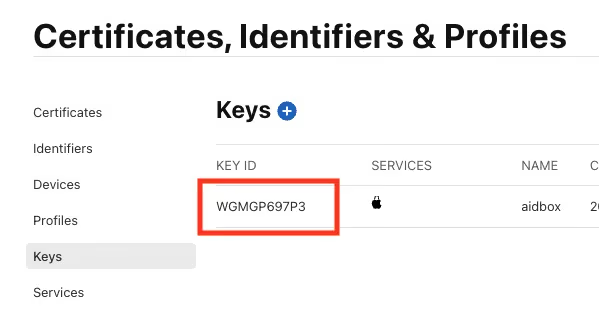
-
<apple-service-id>should be your Apple service id, e.g.local.aidbox.svc -
<apple-private-key>put your private key, that you've downloaded, here. -
<team-id>should be your Apple team Id\
-
<your-https-url>is your Service Website URL you have created before, e.g.https://38f9-93-103-225-249.ngrok-free.app/auth/callback/apple
PUT /fhir/IdentityProvider/apple
content-type: application/json
accept: application/json

{
  "scopes" : [ "email", "openid" ],
  "system" : "apple",
  "authorize_endpoint" : "https://appleid.apple.com/auth/authorize",
  "kid" : "<kid>",
  "client" : {
    "id" : "<apple-service-id>",
    "redirect_uri" : "<your-https-url>",
    "certificate" : "-----BEGIN PRIVATE KEY\n-----<apple-private-key>-----\nEND PRIVATE KEY-----"
  },
  "type" : "apple",
  "resourceType" : "IdentityProvider",
  "title" : "Apple",
  "active" : true,
  "id" : "apple",
  "team_id" : "<your-team-id>",
  "token_endpoint" : "https://appleid.apple.com/auth/token",
  "userinfo-source" : "id-token"
}
Login into Aidbox using Apple user
Go to the Aidbox login page. You should see Sign in with Apple button.
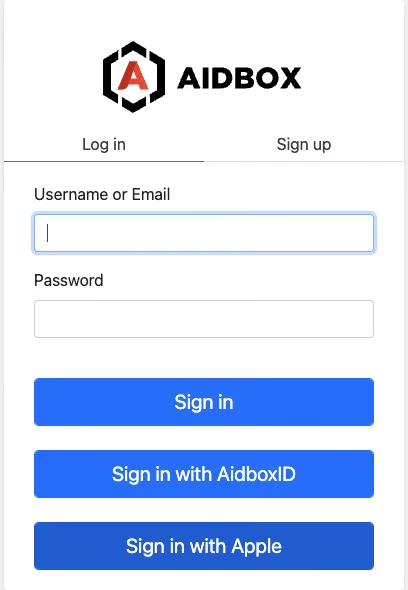
Press this button and log in to Aidbox using your Apple account.
Make sure you have selected "Share my email" option.
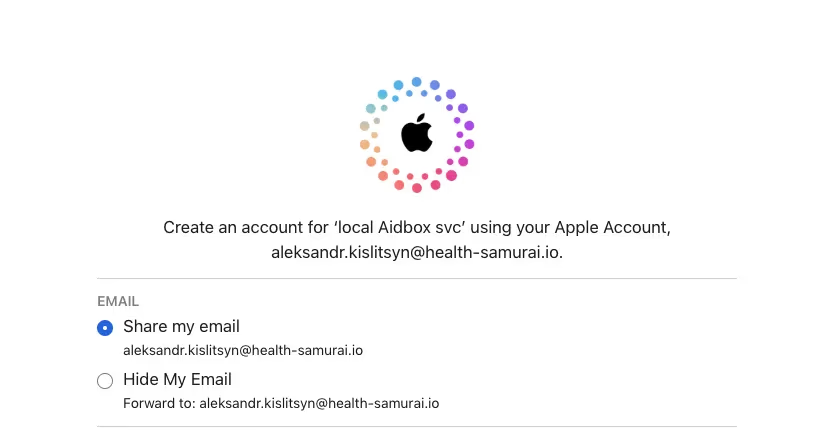
Since no access policy has been assigned to your user yet, you won’t see much in Aidbox.
Log in again as an admin, then navigate to IAM -> User to check the user created in Aidbox for your Apple account. Click on the user ID to view details.
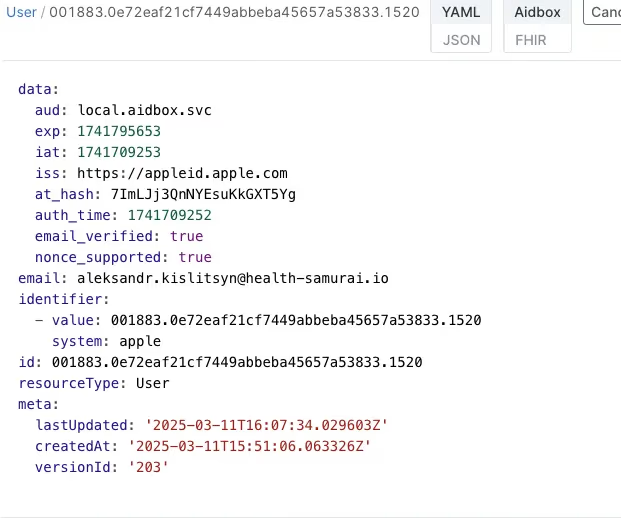
User Resource is Aidbox is updated every time the user logs in using an external Identity Provider. The source of the user information is configured using userinfo-source element in the IdentityProvider configuration resource.
Create the AccessPolicy
Use REST Console to execute the request
PUT /fhir/AccessPolicy/apple-admins-policy
content-type: application/json
accept: application/json

{
 "engine": "matcho",
 "matcho": {
  "user": {
   "email": "aleksandr.kislitsyn@health-samurai.io"
  },
  "request-method": {
   "$enum": [
    "get",
    "post",
    "put",
    "delete"
   ]
  }
 },
 "resourceType": "AccessPolicy"
}
Now you can log in again with your Apple user, and the user will be granted admin access.
What's next
- See more about Aidbox Security