
How to Set Up JumpCloud as IDP
Create and set up JumpCloud SSO (Single Sign-On) Application
This step depends heavily on how you plan to use JumpCloud. This page assumes custom OIDC application (managing everything within JumpCloud), but integrations with Google, Microsoft and other accounts is possible.
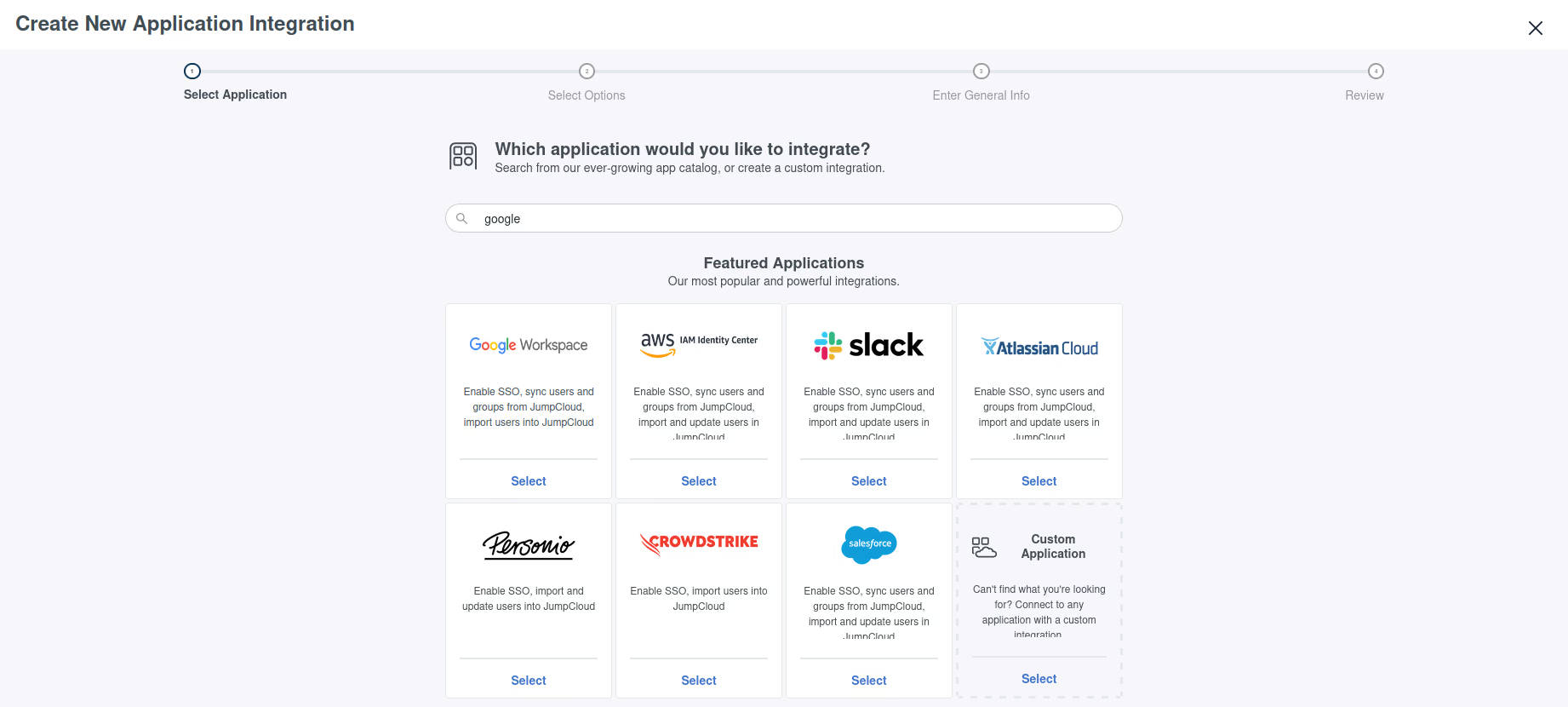
Some key points:
- Auditbox does not support SAML (Security Assertion Markup Language), only OIDC (OpenID Connect) authentication protocol, so some login options are not currently supported.
- Client authentication type should be set to Client Secret Post.
- Login url should be the base url of where Auditbox is deployed.
- Make sure your test user has permissions to access the application.
- Make sure that the SSO setup has proper redirect URL. Upon logging in, you must be redirected onto ${auditbox-host}/auth/callback/keycloak.
Configure Auditbox
Auditbox managed IDP setup via environmental variables. Below is an overview of how the values should be configured.
IDP_CLIENT_ID: <generated>
IDP_CLIENT_SECRET: <generated>

# These values are always the same and can be inserted as is
IDP_AUTHORIZE_ENDPOINT: https://oauth.id.jumpcloud.com/oauth2/auth
IDP_TOKEN_ENDPOINT: https://oauth.id.jumpcloud.com/oauth2/token
IDP_JWKS_URI: https://oauth.id.jumpcloud.com/.well-known/jwks.json