# How to Set Up JumpCloud as IDP
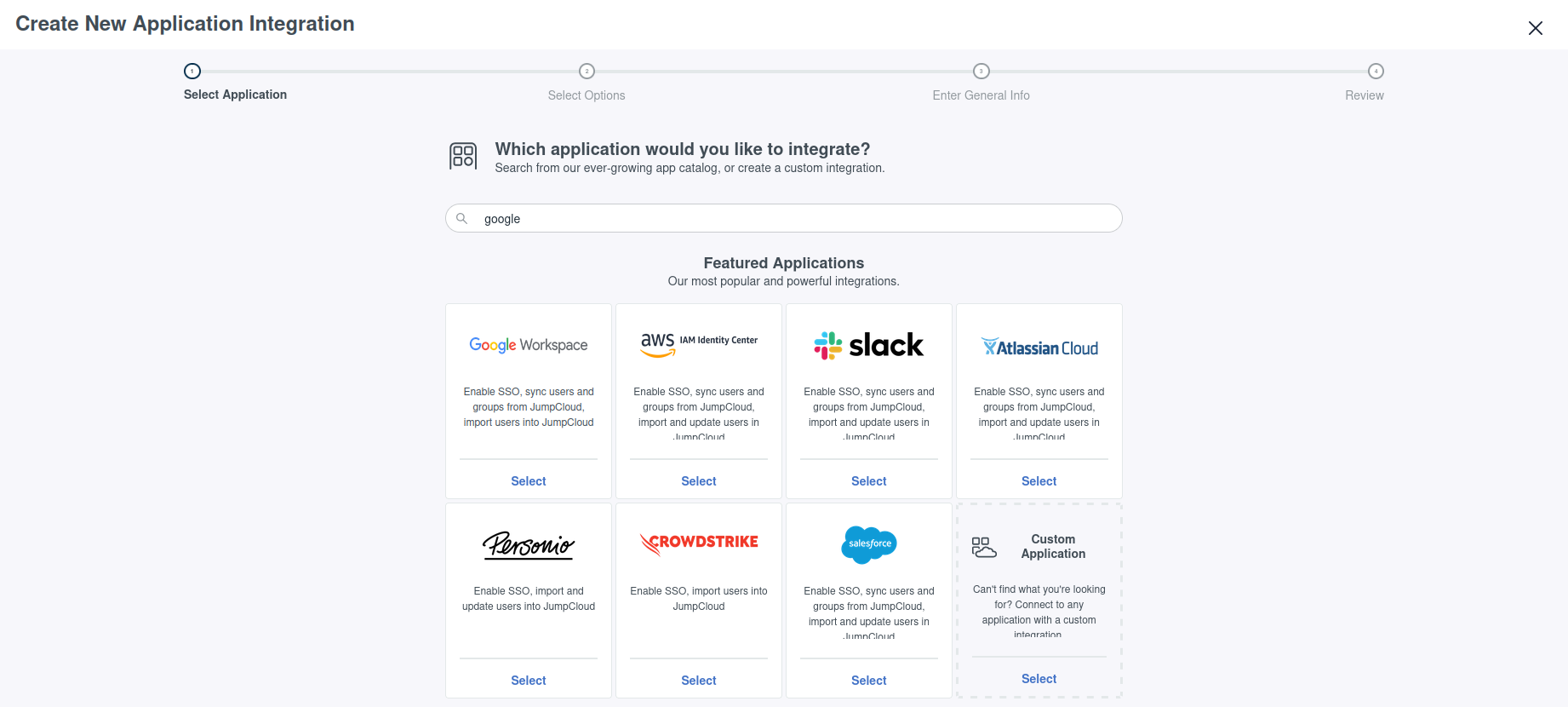
## Create and set up JumpCloud SSO (Single Sign-On) Application
This step depends heavily on how you plan to use [JumpCloud](https://jumpcloud.com).
This page assumes custom OIDC application (managing everything within
JumpCloud), but integrations with
[Google](https://jumpcloud.com/support/configure-google-workspace-identity-provider),
[Microsoft](https://jumpcloud.com/support/configure-azure-as-identity-provider)
and other accounts is possible.
Some key points:
- Auditbox **does not support SAML** (Security Assertion Markup Language),
**only OIDC** (OpenID Connect) authentication protocol, so some login
options are not currently supported.
- Client authentication type should be set to **Client Secret Post**.
- Login url should be the base url of where Auditbox is deployed.
- Make sure your test user has permissions to access the application.
- Make sure that the SSO setup has proper redirect URL. Upon logging
in, you must be redirected onto **${auditbox-host}/auth/callback/keycloak**.
## Configure Auditbox
Auditbox managed IDP setup via environmental variables.
Below is an overview of how the values should be configured.
```yaml
IDP_CLIENT_ID:
IDP_CLIENT_SECRET:
# These values are always the same and can be inserted as is
IDP_AUTHORIZE_ENDPOINT: https://oauth.id.jumpcloud.com/oauth2/auth
IDP_TOKEN_ENDPOINT: https://oauth.id.jumpcloud.com/oauth2/token
IDP_JWKS_URI: https://oauth.id.jumpcloud.com/.well-known/jwks.json
```