---
description: >-
This guide shows how to set-up Azure AD identity provider in Aidbox with
asymmetric authentication
---
# How to configure Azure AD SSO with certificate authentication for access to the Aidbox UI
{% hint style="info" %}
This guide explains how to set-up Azure AD identity provider in Aidbox with an asymmetric authentication mechanism. If you are looking for symmetric (secret-based one), please, follow [Azure AD guide](azure-ad.md).
{% endhint %}
## Register an application in Azure
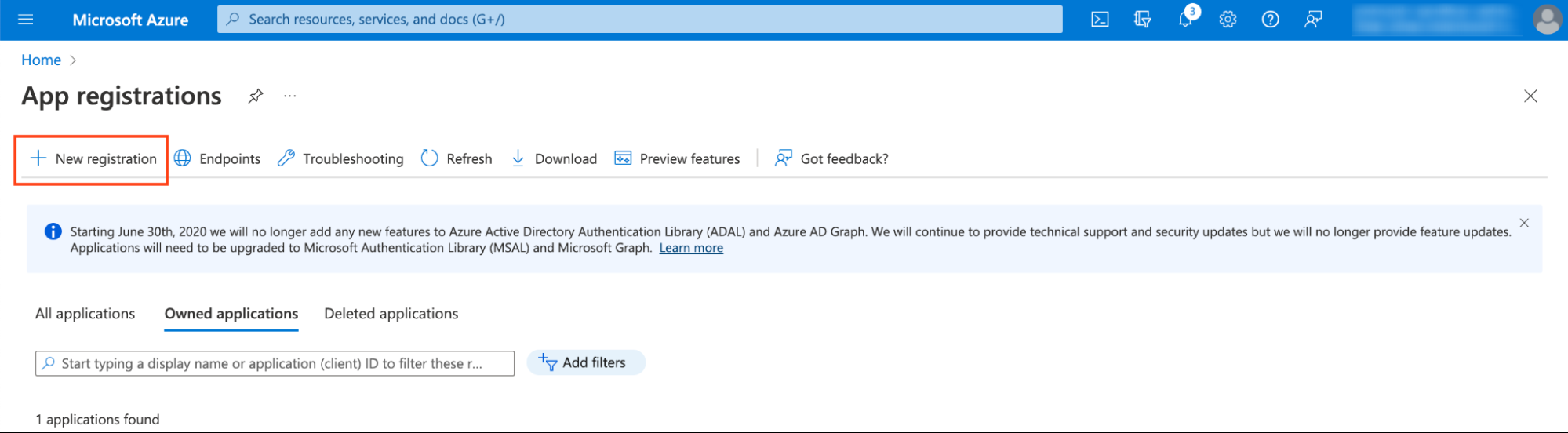
* Find **App Registration** in search bar
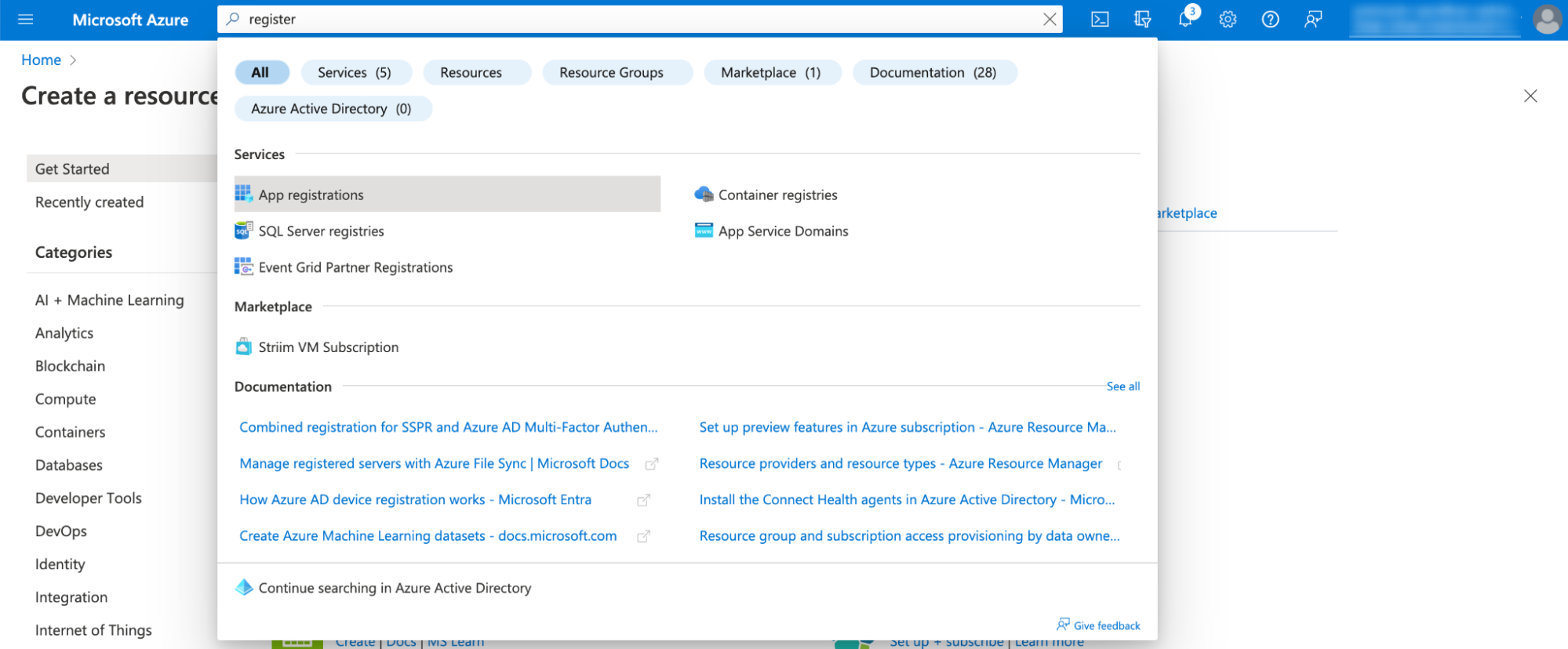
* Click **New Registration**
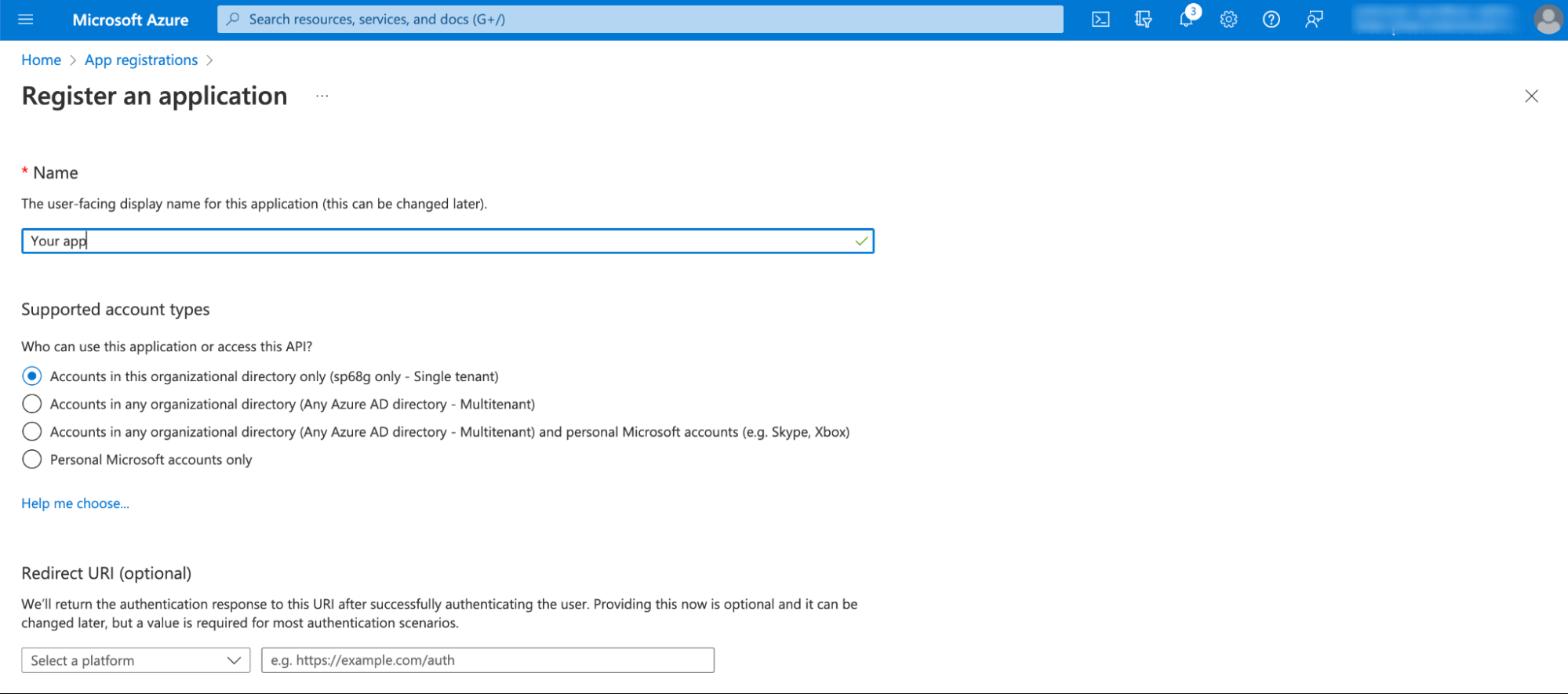
* Fill form. For Redirect URI choose `web` as a platform and input `https:///auth/callback/azure`
## Create IdentityProvider in Aidbox
Open REST console in Aidbox UI and create `IdentityProvider`
```yaml
POST /IdentityProvider
content-type: text/yaml
accept: text/yaml
id: azure
title: Azure AD
active: true
scopes:
- profile
- openid
system: azure
userinfo-source: id-token
authorize_endpoint:
token_endpoint:
client:
id:
```
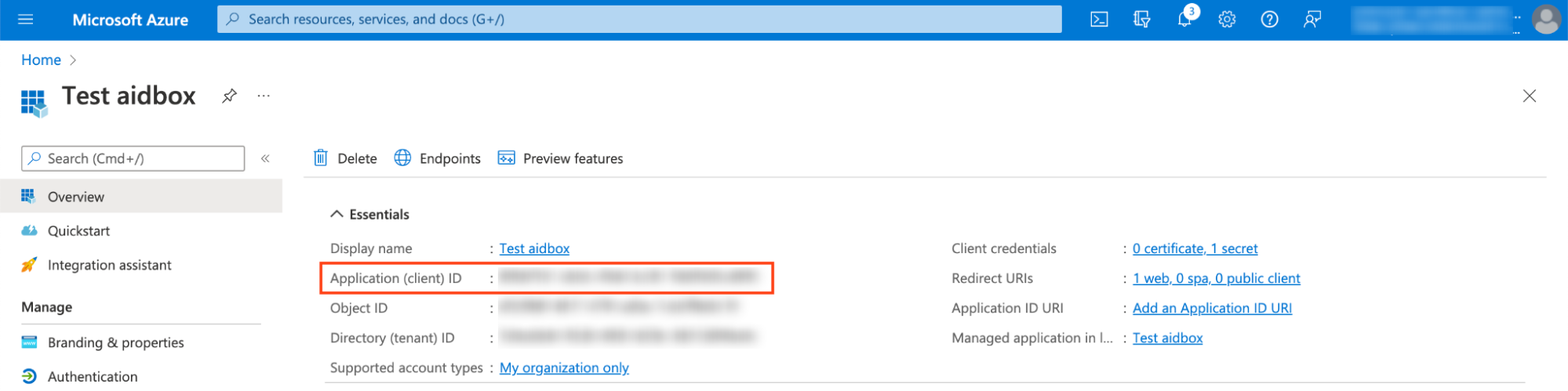
You can find application (client) id on **App Overview** page
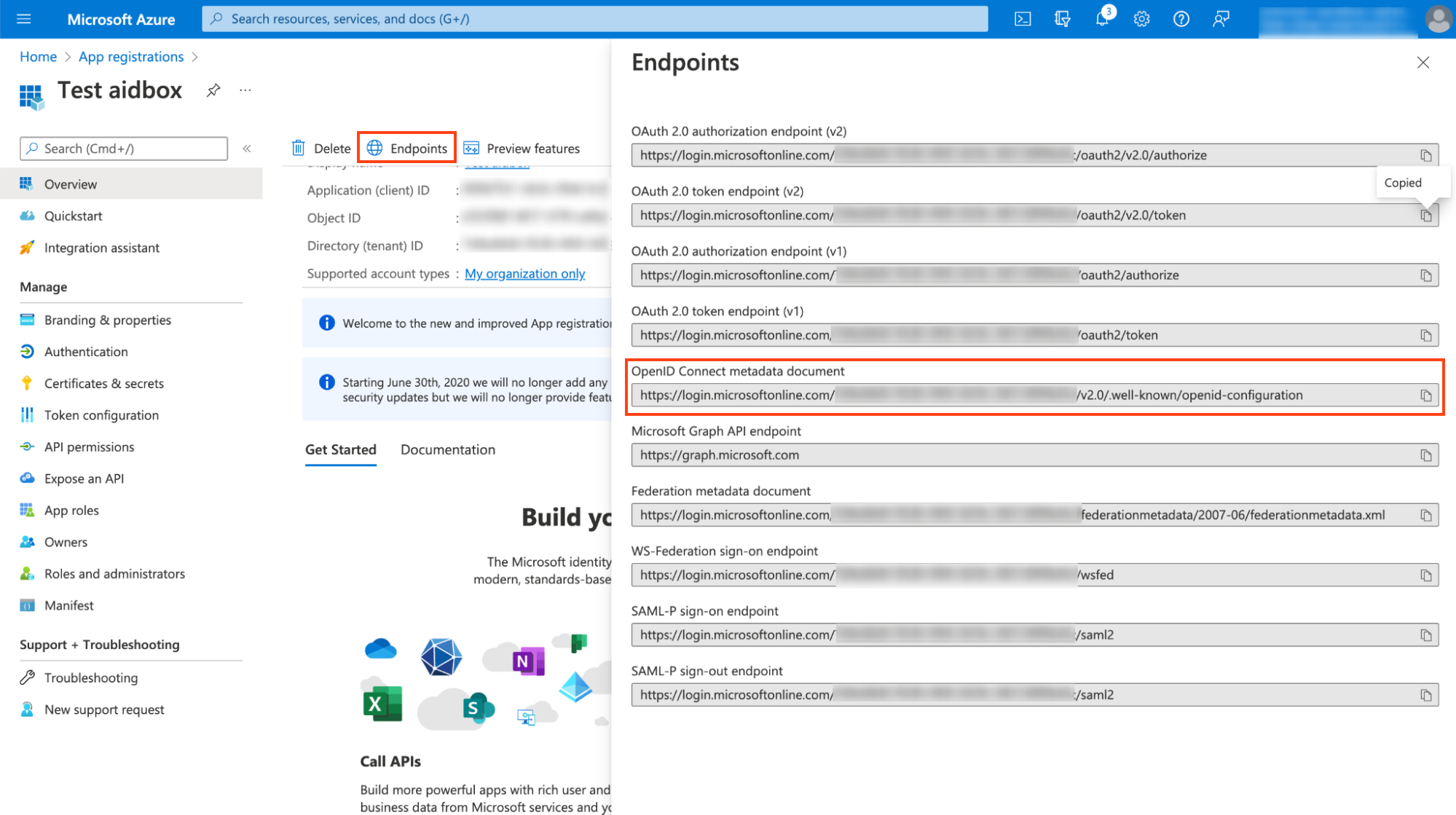
and your endpoints by clicking on **Endpoints** and visiting `OpenID Connect metadata document`
## Issue certificate
Once IdentityProvider resource is created in Aidbox, you can generate private key & certificate:
```yaml
POST /IdentityProvider/azure/$rotate-credentials
content-type: text/yaml
accept: text/yaml
auth-method: asymmetric
confirm: true
# response 200 OK
# Private key & certificate are generated and saved in the IdentityProvider
```
{% hint style="info" %}
Aidbox generates certificate for 365 days.
{% endhint %}
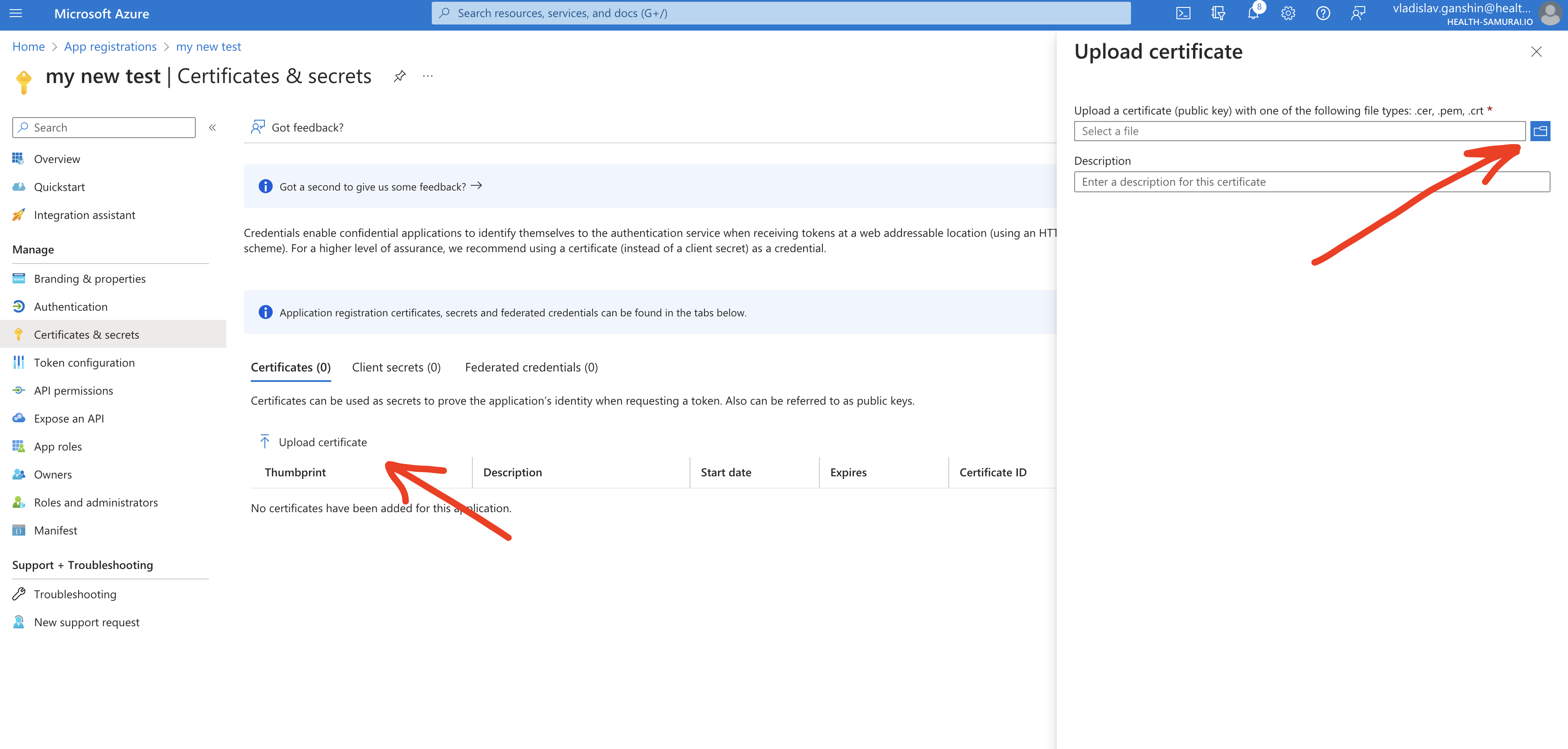
Than you may download the certificate in order to upload it to Azure AD by following the link
```
/IdentityProvider/azure/$download-certificate
```
Upload the certificate into Azure AD
It may take few minutes when Azure starts processing the uploaded certificate.
## Log in to Aidbox
Go to your Aidbox base URL. You will be redirected to the log in page where you should now see `Sign in with Azure AD` button. Press this button and log in with Azure AD user. This user will be logged in to Aidbox Console but he won’t have any permissions. Read more in [Access Control Section](../../access-control/access-control.md) about permissions.