---
description: >-
This doc will help you get a deeper understanding of Aidbox notebooks and how
they can help you on a daily basis.
---
# Aidbox Notebooks
{% hint style="warning" %}
Aidbox notebooks is a beta. Please join [the discussion](https://github.com/Aidbox/Issues/discussions/412) or [contact](../contact-us.md) us if you want to contribute.
{% endhint %}
A notebook is a single page where you can run code ([REST](../../api/rest-api/), [SQL](../../api/rest-api/other/sql-endpoints.md), [RPC](../../api/other/rpc-api.md)) check the output, and complement it with text. Using Aidbox notebook you can easily create custom scenarios with your Aidbox data, save it for later use or share it with your colleagues and the Aidbox community.
So now you can easily:
* create custom scenarios using different requests.
* share knowledge with your team and Aidbox community
* raise questions and report issues related to Aidbox
## **Functionality**
* REST, SQL, RPC Markdown support in cells
* [Notebook save](aidbox-notebooks.md#save-a-notebook)
* [Notebooks repository](aidbox-notebooks.md#publish-notebook) - space for public notebook storage.
* [Notebook share/preview/upload](aidbox-notebooks.md#share-a-notebook)
## Notebooks section in Aidbox UI
When clicking the notebooks tab in Aidbox UI you will get to the notebooks page. This page consists of your personal notebooks and Aidbox community notebooks.
.png>)
## Create a notebook
You can create a notebook by clicking **new** in the notebooks menu. Each notebook consists of a title, subtitle, and a block of cells.
After you create your cell click the **play** icon to see the answer.
## Save a notebook
You can save a notebook for later use or share it with your team. The saved notebook will be available in **My notebooks section.**
## Share a notebook
To share your Aidbox notebook with others and upload it to another Aidbox, simply click on the `share` button and choose the share method that works best for you — either as a _file_ or a _link_.
If you choose to share as a _file_, Aidbox will download the notebook as a `.html` file, which will contain a preview of the notebook.
If you choose to share as a _link_, Aidbox will generate a unique link, such as [https://aidbox.app/ExportedNotebook/fa061348-1851-4962-b39e-ba496eba23bd](https://aidbox.app/ExportedNotebook/fa061348-1851-4962-b39e-ba496eba23bd), and copy it to your clipboard. You can also share notebooks directly from the notebooks grid.\\
## Preview a notebook
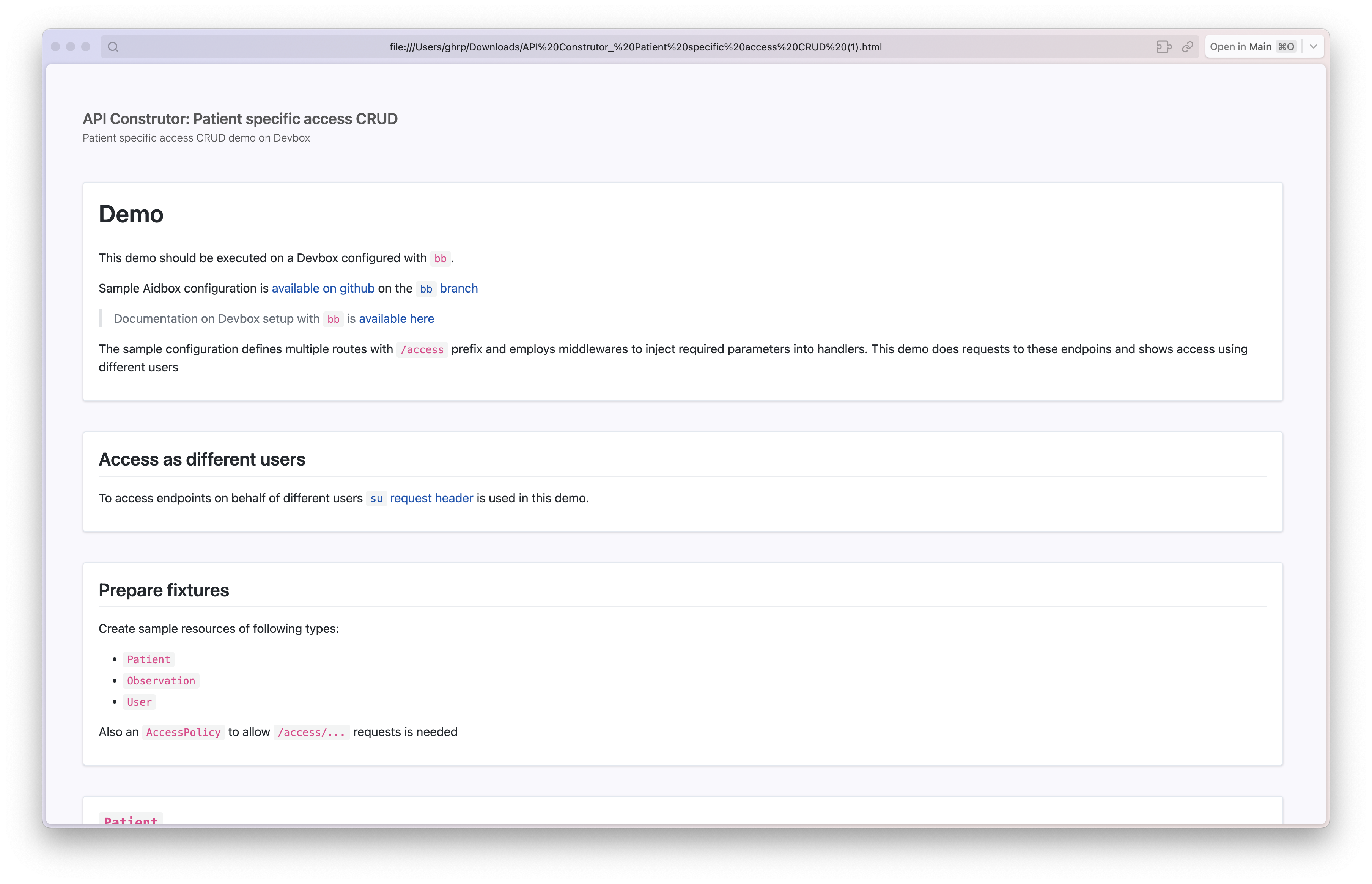
You don't need a running Aidbox instance to preview a notebook. You can open the downloaded `.html` file in any browser and view its contents.
Notebook preview
## Upload a notebook
To upload the notebook click `upload` button and select appropriate option.
If you selected `as file` option, upload notebook `.html` file
If you selected `as link` option, paste the notebook share link and click `upload` button
Upload via link
## Publish a notebook
You can also publish a notebook and share it with the Aidbox community. The published notebook will be available in the Community notebooks section.