# Run Aidbox on AWS
Sign in to your AWS account.
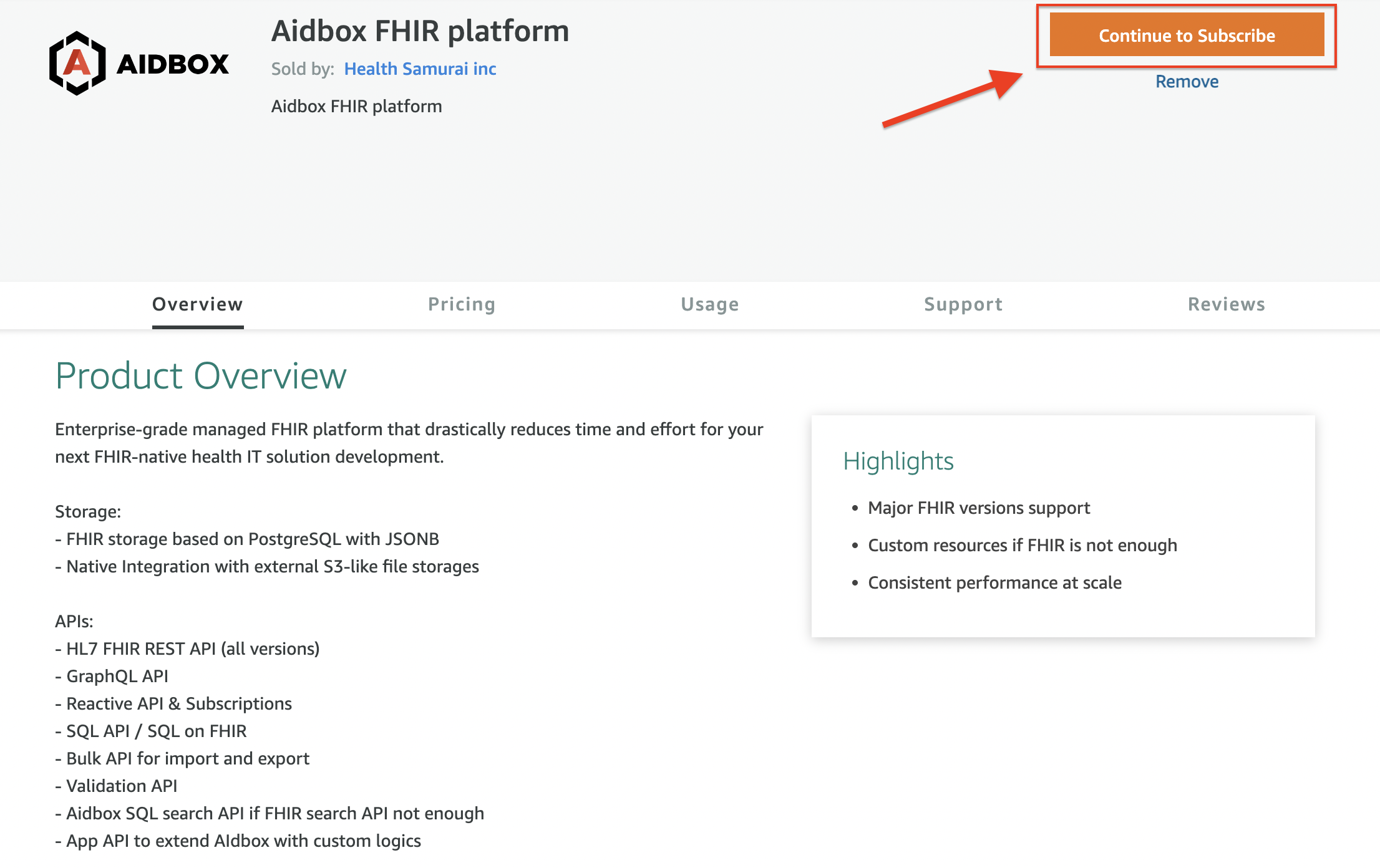
Open [Aidbox FHIR platform product page](https://aws.amazon.com/marketplace/pp/prodview-l5djlpvsd6o5g) in AWS Marketplace
Click on the **"Continue to Subscribe"** button
Aidbox FHIR platform product page
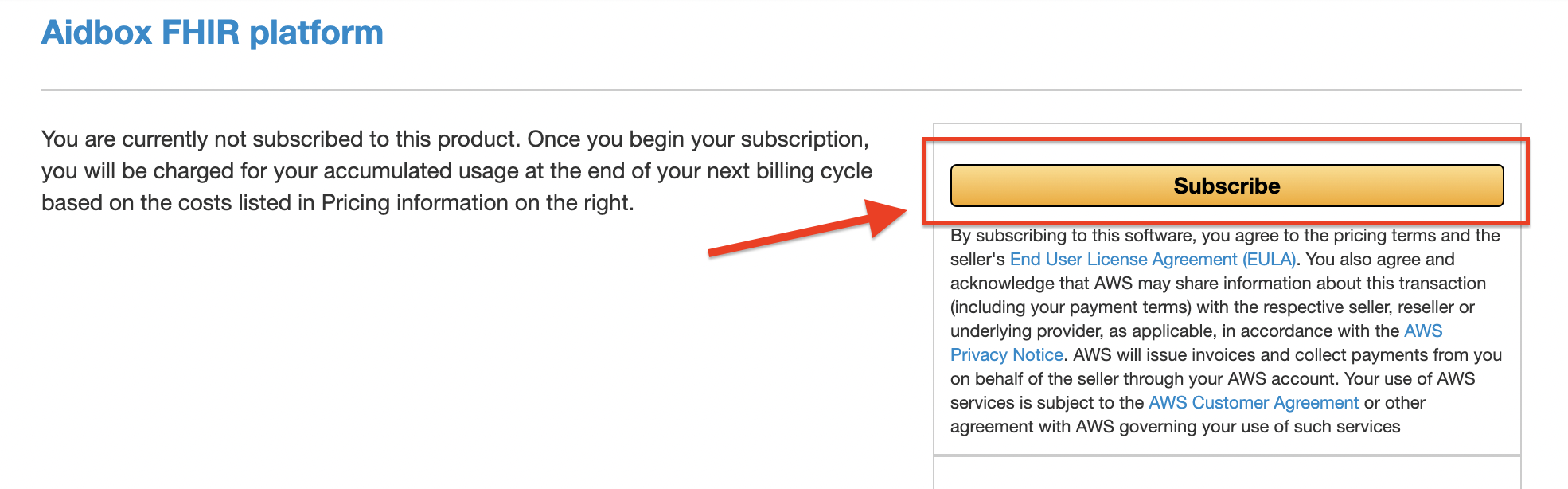
On the next scerrn click to the **"Subscribe"** button
Subscribe to the "Aidbox FHIR platform product"
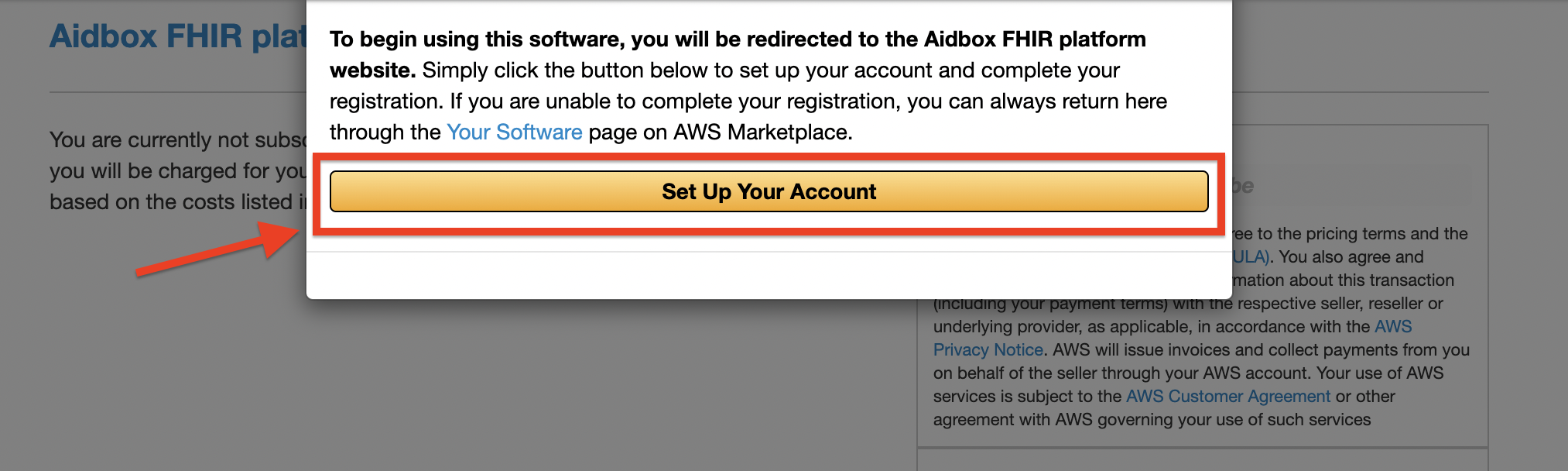
On the last screen click on **"Set Up Your Account"** button.
Set Up Your Account screen
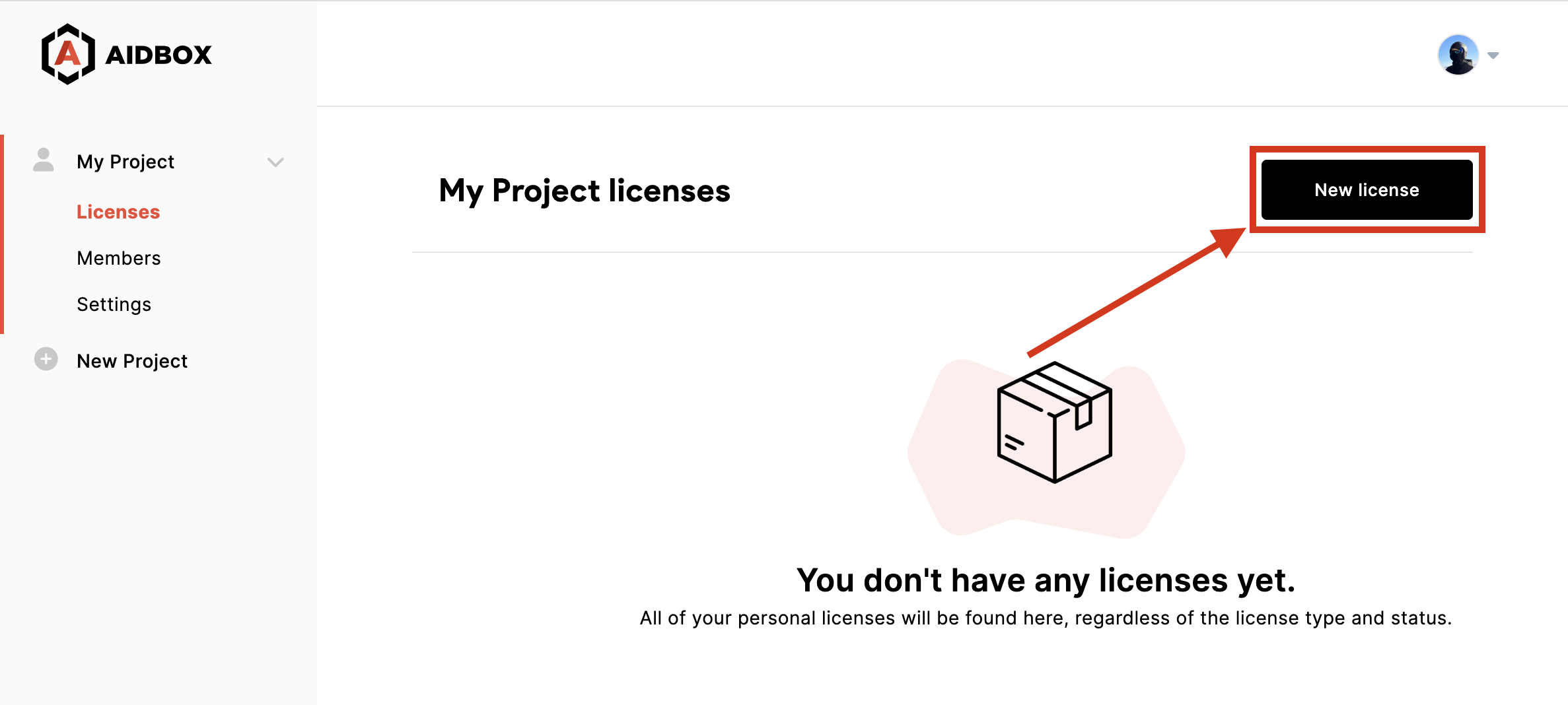
After that, you will be redirected to the Aidbox user portal page. Log in in to Aidbox user portal and create new license.
On license create page select product type and fill all required fields. On "Hosting" section you need select **AWS** options. If you successfully subscribe on AWS you will see a green message "You have an active AWS subscription...". Select the hosting zone and click create button.
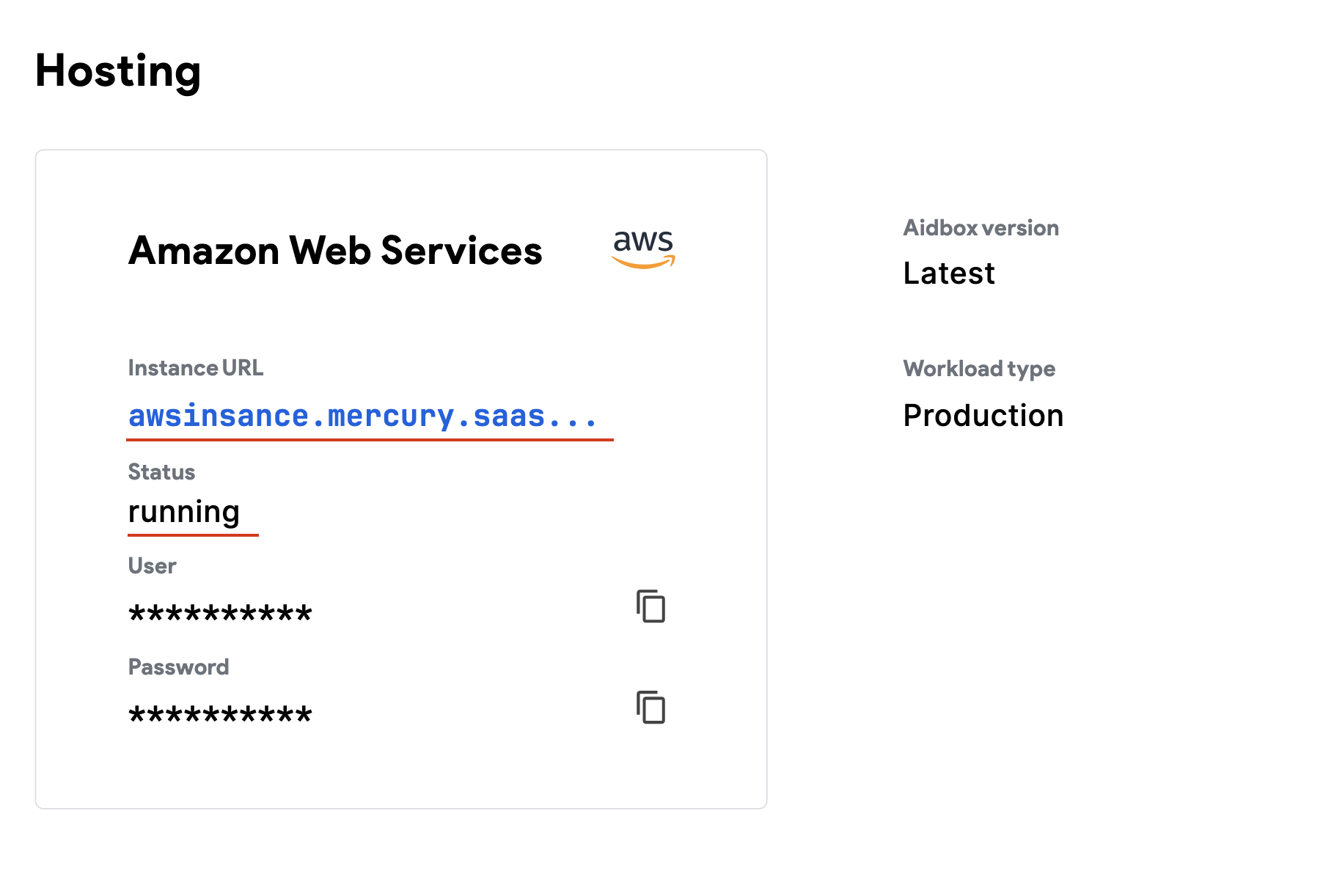
You can check your license status on the licenses list page. Wait a couple of minutes until we install your environment and order certificates. As a result in "Hosting" section status should be changed to **Running**
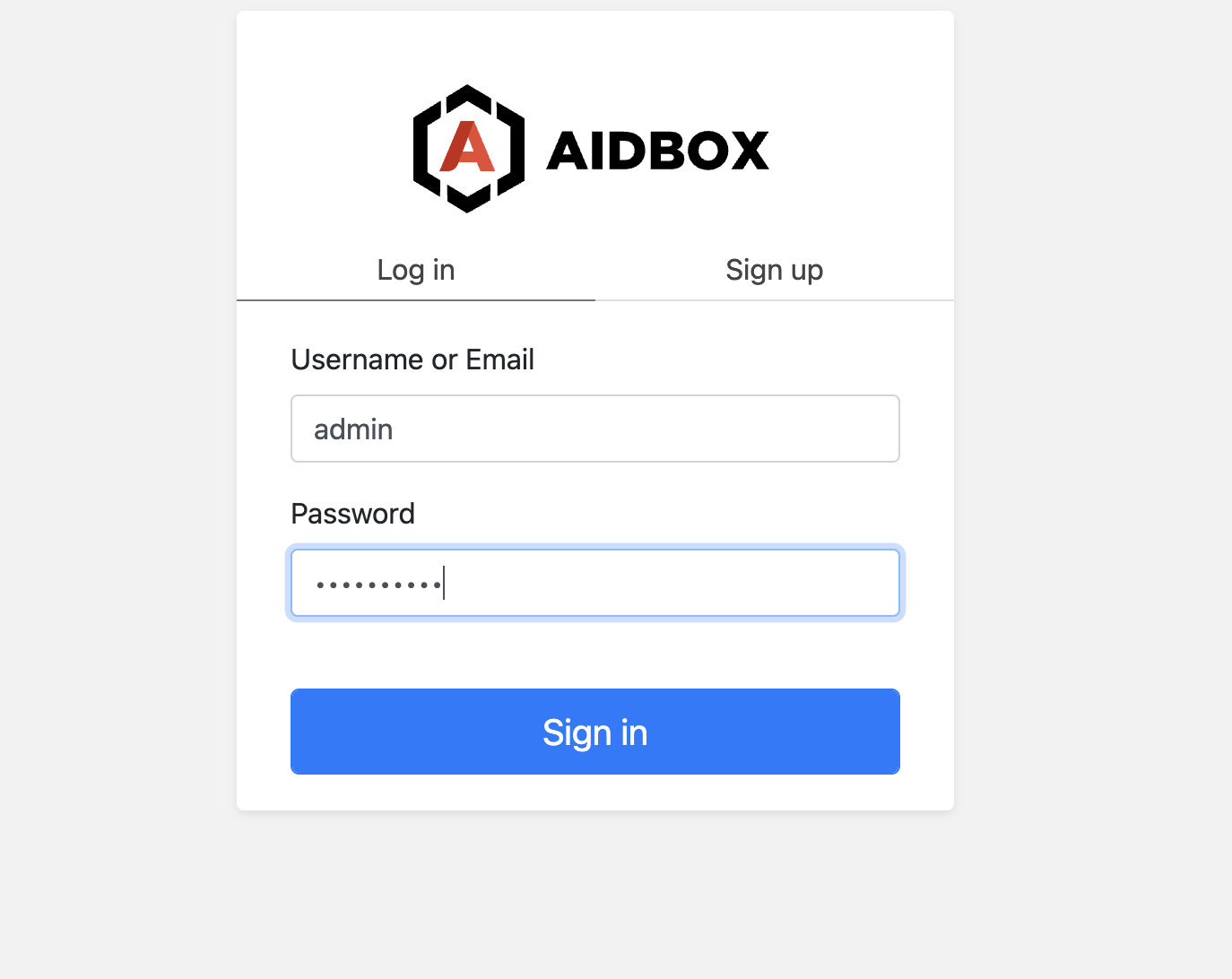
Now you can open your instance URL and enter user/password credentials from license page
.png)