---
description: Follow these steps to launch Aidbox locally using Docker
---
# Run Aidbox locally
## Prerequisites
{% hint style="warning" %}
Please **make sure** that both [Docker & Docker Compose](https://docs.docker.com/engine/install/) are installed.
{% endhint %}
## Steps
### 1. Create a directory
```sh
mkdir aidbox && cd aidbox
```
### 2. Run Aidbox on Docker
```bash
curl -JO https://aidbox.app/runme && docker compose up
```
This command downloads the Aidbox script and starts Aidbox using Docker Compose.
### 3. Access Aidbox
Open in browser [http://localhost:8080/](http://localhost:8080)
### 4. Activate your Aidbox instance
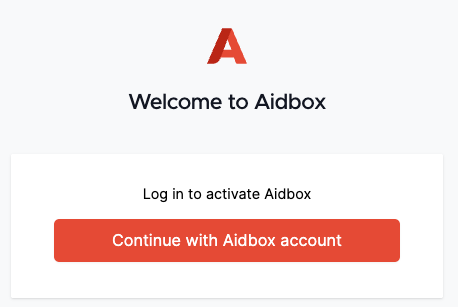
Click "Continue with Aidbox account" and create a free Aidbox account in [Aidbox user portal](https://aidbox.app/).
More about Aidbox licenses [here](../overview/aidbox-user-portal/licenses.md)
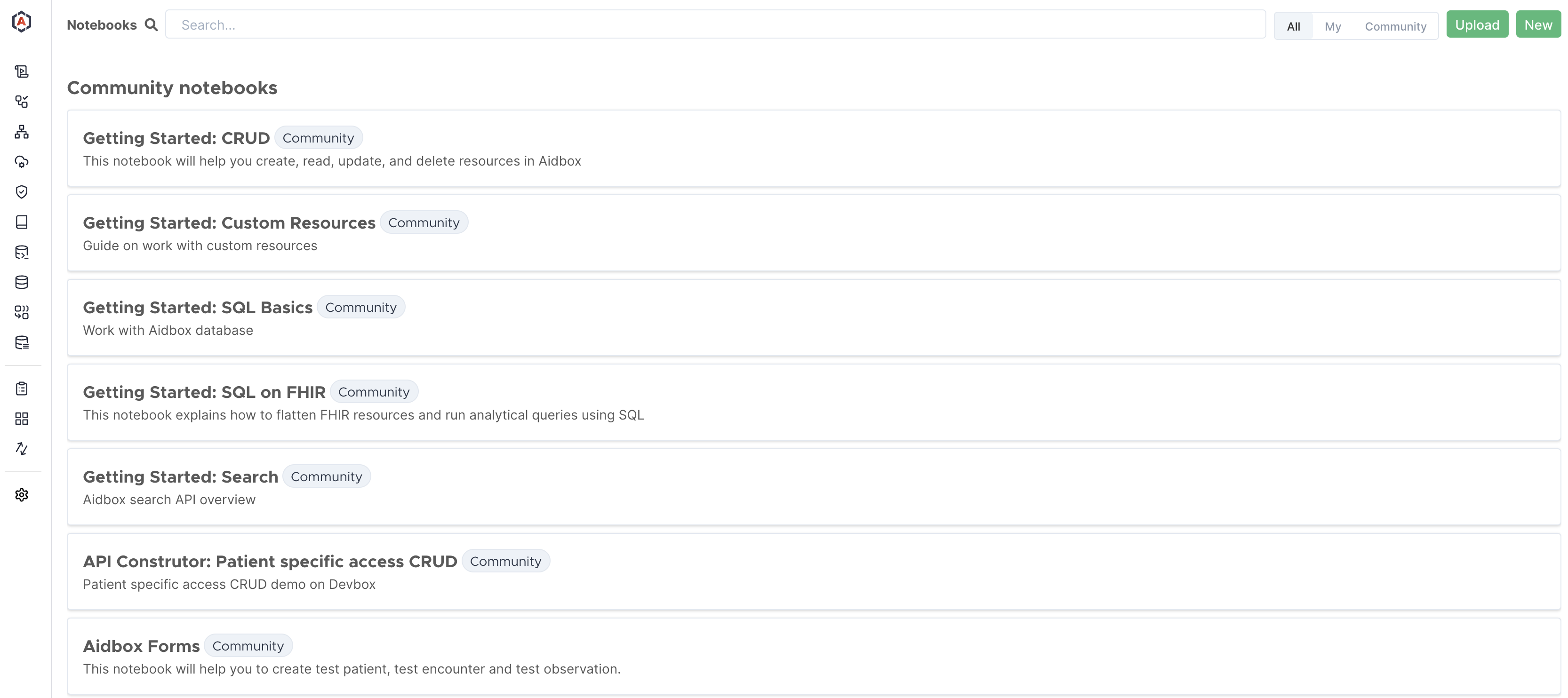
### 5. **Discover Aidbox features using Notebooks**
Use Getting Started Notebooks to explore basic Aidbox features
{% hint style="info" %}
**Aidbox Notebooks**
Notebooks are interactive tutorials within the Aidbox UI with built-in REST, RPC, and SQL editors and the ability to execute requests and queries on the fly and see the result. You can use pre-built or create your own Notebooks. [Learn more.](../overview/aidbox-ui/aidbox-notebooks.md)
{% endhint %}
## Next steps
* Learn more about [Aidbox Configuration](../configuration/configure-aidbox-and-multibox.md)
* Unlock additional capabilities of [Aidbox UI](../overview/aidbox-ui/)
* Dive into the built-in [Aidbox Notebooks](../overview/aidbox-ui/aidbox-notebooks.md)
.png) Please **make sure** that both [Docker & Docker Compose](https://docs.docker.com/engine/install/) are installed.
{% endhint %}
## Steps
### 1. Create a directory
```sh
mkdir aidbox && cd aidbox
```
### 2. Run Aidbox on Docker
```bash
curl -JO https://aidbox.app/runme && docker compose up
```
This command downloads the Aidbox script and starts Aidbox using Docker Compose.
### 3. Access Aidbox
Open in browser [http://localhost:8080/](http://localhost:8080)
### 4. Activate your Aidbox instance
Please **make sure** that both [Docker & Docker Compose](https://docs.docker.com/engine/install/) are installed.
{% endhint %}
## Steps
### 1. Create a directory
```sh
mkdir aidbox && cd aidbox
```
### 2. Run Aidbox on Docker
```bash
curl -JO https://aidbox.app/runme && docker compose up
```
This command downloads the Aidbox script and starts Aidbox using Docker Compose.
### 3. Access Aidbox
Open in browser [http://localhost:8080/](http://localhost:8080)
### 4. Activate your Aidbox instance